An online whiteboard is a browser-based digital canvas that lets individuals and teams draw, write, annotate, and collaborate visually in real time across any device. Unlike physical whiteboards, the digital version removes location as a barrier entirely. Tools like Miro, FigJam, and Canva Whiteboards have made visual collaboration standard practice for remote teams, educators, and product designers alike. The core advantage is simple: every participant sees the same canvas, at the same moment, whether they are on a laptop in Chicago or a tablet in Tokyo. This guide covers what to look for, how to get started, and how to get the most out of your virtual whiteboard tool.
What features should you look for in an online whiteboard?
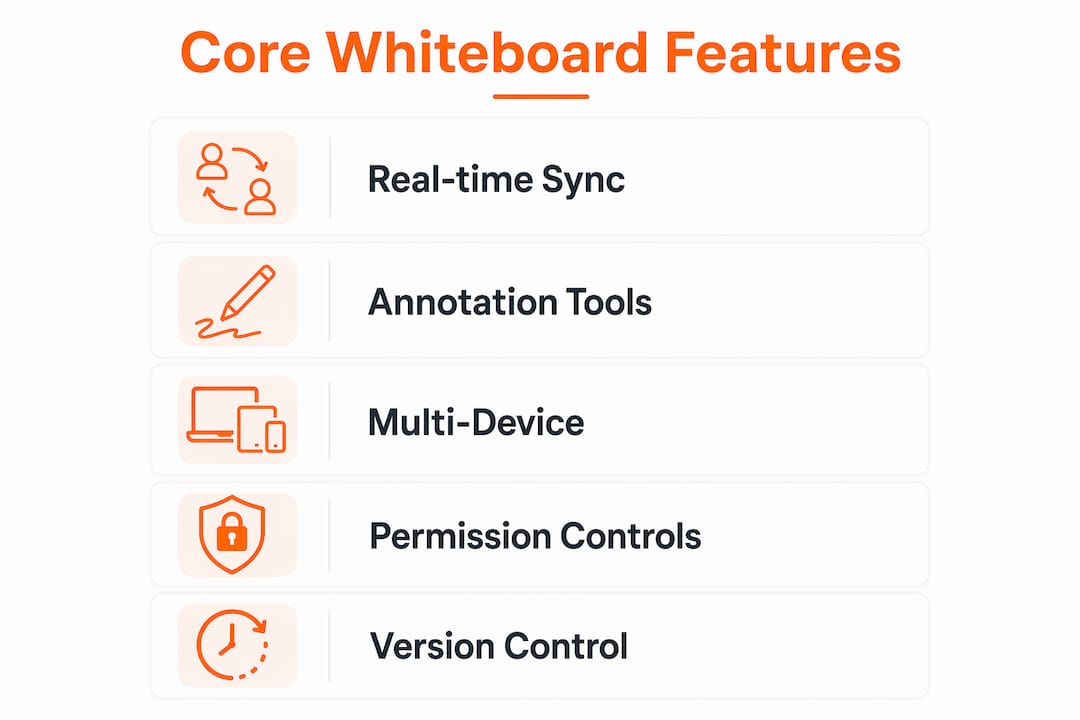
The best online collaboration tools share a consistent set of capabilities that separate genuinely useful platforms from those that look good in screenshots but frustrate users in practice. Cross-platform access with responsive design is now standard across modern tools, meaning you should expect full functionality on desktop, tablet, and mobile without compromise. That said, not all features are created equal, and knowing which ones matter for your workflow saves significant time.
Core features worth prioritizing
- Real-time multi-user sync. Multiple collaborators should be able to edit simultaneously with instant updates. Real-time collaboration reduces coordination delays and lets teams contribute ideas without waiting for a turn.
- Infinite or expandable canvas. A fixed-size board limits creative thinking. An infinite canvas lets brainstorming sessions grow organically without forcing artificial structure too early.
- Annotation tools. Drawing, freehand sketching, sticky notes, text boxes, and shape libraries are the building blocks of any visual session. Platforms that lock annotations to underlying content, such as imported PDFs, prevent notes from drifting out of position when you zoom or pan.
- PDF and image import/export. The ability to bring in existing documents and export finished boards as PDFs or images keeps whiteboards connected to real work rather than isolated from it.
- Templates and integrations. Pre-built templates for retrospectives, mind maps, and sprint planning accelerate setup. Integration with tools like Jira or Microsoft Teams connects whiteboard sessions directly to project workflows.
- Security and privacy. Some platforms process all data locally in the browser with no data uploaded to servers, which is a meaningful privacy advantage for sensitive work.
| Feature | Why it matters |
|---|---|
| Real-time sync | All users see changes instantly, reducing miscommunication |
| Infinite canvas | Supports open-ended brainstorming without space constraints |
| PDF annotation | Keeps notes aligned to source documents during teaching or review |
| Template library | Cuts setup time for recurring session types |
| Privacy controls | Protects sensitive content, especially in client-facing work |
Pro Tip: Before committing to any platform, test its annotation behavior on an imported PDF. If notes drift when you zoom, that tool will frustrate anyone using it for teaching or document review.

How to set up and start using an online whiteboard for collaboration
Getting started with a virtual whiteboard tool takes less time than most people expect. The choice between a no-signup browser tool and a persistent account-based platform depends entirely on whether you need to save and revisit your work. For a quick team brainstorm, a browser-based board with no login required is often the fastest path. For ongoing projects, a platform with persistent storage and version history is worth the extra setup step.
Here is a practical sequence for getting a collaborative session running:
- Choose your platform. Decide whether the session is a one-time brainstorm or part of a longer project. No-signup tools work well for transient sessions. Account-based platforms suit recurring team use.
- Create or open a board. Most tools generate a unique shareable URL the moment you open a new board. No configuration is needed before you start drawing.
- Familiarize yourself with the toolbar. Spend two minutes locating the pen tool, sticky note function, shape library, and text tool. Most interfaces place these along the left or top edge of the canvas.
- Invite collaborators. Share the board URL directly, or use the platform’s built-in invite feature to send access via email. Set permissions carefully: decide who can edit versus who can only view.
- Import any reference documents. If your session involves reviewing a brief, a design mockup, or a research document, import it as a background layer before the session begins. This prevents the scramble of uploading files mid-meeting.
- Use a template if available. Templates for mind mapping, affinity diagrams, or project timelines give the session structure without limiting creativity. They also signal to participants what kind of thinking is expected.
- Save and export at the end. Export the finished board as a PDF or image file and share it with all participants immediately after the session. Boards that are not saved promptly often get lost.
Pro Tip: Assign one person as the “board owner” before the session starts. That person controls permissions, manages imports, and handles the export. Shared ownership of logistics usually means no one handles them.
How do online whiteboards work on mobile and tablet devices?
Mobile and tablet support has become a genuine differentiator among whiteboard platforms, not just a checkbox feature. Tools with progressive web app capabilities and offline mode deliver a noticeably better experience on smartphones and tablets than those relying on a standard browser window. The difference shows up most clearly when drawing: a platform built for touch input responds to finger and stylus gestures naturally, while one designed primarily for mouse input feels clunky on a touchscreen.
Several factors determine how well a whiteboard performs on mobile:
- Responsive UI. The toolbar and canvas should reflow for smaller screens without hiding critical tools behind nested menus.
- Touch and pointer support. Platforms that distinguish between finger input for panning and stylus input for drawing give tablet users far more control.
- Offline capability. A progressive web app can cache the board locally, allowing work to continue during connectivity drops. This matters for users in areas with unreliable internet.
- Performance on lower-powered devices. Client-side processing keeps the board responsive even on older tablets by avoiding round-trips to a server for every action.
Mobile-optimized design follows the same principles across software categories: reduce friction, prioritize touch targets, and never assume the user has a keyboard. Whiteboard platforms that apply these principles consistently are the ones that actually get used on mobile rather than abandoned in favor of a laptop.
What are the most common challenges with online whiteboards?
Even well-designed platforms create friction when teams do not establish clear working habits. The most frequent problems are predictable, and most have straightforward solutions.
Canvas clutter is the top complaint among teams using infinite canvas boards. Without structure, a shared board quickly becomes a wall of disconnected sticky notes and overlapping drawings. The fix is simple: agree on a spatial layout before the session starts. Assign zones to specific topics or contributors, and use color coding consistently.
Annotation misalignment is a specific problem that appears when notes are placed on top of imported documents without being locked to the underlying layer. Annotations that remain aligned when zooming are a feature of annotation-first platforms, not a universal capability. If your workflow involves annotating PDFs or slide decks, verify this behavior before choosing a tool.
Access and permissions confusion slows sessions down when participants arrive to find they cannot edit the board. Set permissions before sending the invite link, and confirm that collaborators can access the board from their specific device and browser.
Latency during large sessions affects platforms that rely on server-side processing. With many simultaneous users, updates can lag by several seconds. Tools that handle processing locally in the browser avoid this problem by reducing server dependency.
Version control is rarely built into free-tier whiteboard tools. Export a snapshot of the board at the end of each session and store it in a shared folder. This creates a simple audit trail without requiring a premium subscription.
Pro Tip: At the start of any collaborative session, spend 90 seconds walking participants through the board layout and the one rule you want everyone to follow. One clear norm, such as “add your name to every sticky note,” prevents most of the confusion that derails sessions.
Key takeaways
The most effective online whiteboard setup combines the right platform choice, clear session structure, and consistent export habits to turn visual collaboration into a repeatable workflow.
| Point | Details |
|---|---|
| Match tool to permanence | Use no-signup tools for quick sessions; choose account-based platforms for ongoing projects. |
| Prioritize annotation alignment | Verify that notes stay locked to imported documents before committing to a platform. |
| Structure the canvas first | Assign spatial zones before the session to prevent clutter and confusion. |
| Test mobile performance | Confirm touch input and offline support before relying on a tool for tablet-based work. |
| Export immediately | Save a board snapshot after every session to maintain a reliable record of decisions. |
Why annotation-first thinking changes how you use a whiteboard
Most teams approach an online drawing board as a blank canvas and treat annotation as an afterthought. That approach works for pure brainstorming, but it breaks down the moment you bring in a document, a design, or a presentation. The misconception that whiteboards must be all-in-one apps leads teams to overlook annotation-first tools that handle document review with far more precision.
In my experience, the teams that get the most out of visual collaboration are the ones that decide before the session what the board needs to accomplish. A retrospective needs a different setup than a product roadmap review, and both need a different setup than a teaching session with annotated slides. Treating every session as a blank-canvas brainstorm is the single most common reason teams feel like their whiteboard tool is not working.
The integration angle is also underused. Connecting your whiteboard to tools like Jira or Microsoft Teams is not just a convenience feature. It closes the gap between where ideas are generated and where work actually gets tracked. Teams that skip this step often find that brilliant session outputs disappear into a PDF that nobody opens again. For anyone running virtual problem framing sessions, that integration is what turns a whiteboard into a genuine part of the workflow rather than a one-time exercise.
Visual collaboration is not going to get less important. The teams building good habits now, around structure, annotation discipline, and tool integration, are the ones that will use these tools effectively as they become more capable.
— A
Try Onlinewhiteboard for your next collaboration session
Onlinewhiteboard is built for exactly the kind of work this article describes: fast setup, no software download, and a clean canvas that works on any device.
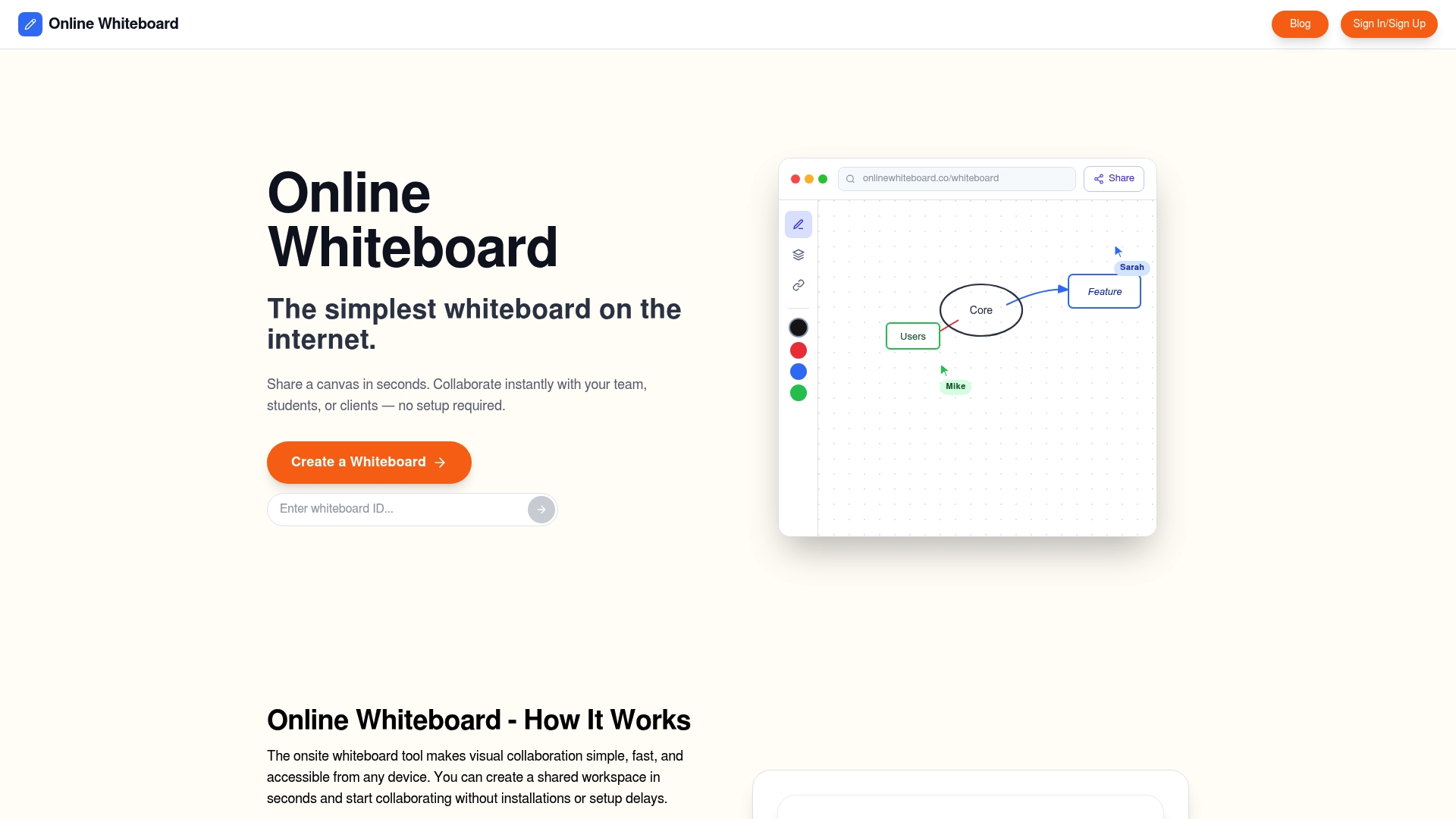
With Onlinewhiteboard, you can start a free digital whiteboard session in seconds, invite your team via a shared link, and collaborate in real time without creating an account. The platform supports PDF import, multi-page boards, freehand drawing, sticky notes, and cross-device access including full touch support on tablets and smartphones. Whether you are running a team brainstorm, teaching a virtual class, or mapping out a product roadmap, Onlinewhiteboard gives you a focused space to think visually without the setup overhead of more complex tools.
FAQ
What is an online whiteboard used for?
An online whiteboard is used for real-time visual collaboration, including brainstorming, project planning, teaching, design reviews, and team retrospectives. It replaces the physical whiteboard in remote and hybrid settings by giving all participants access to the same shared canvas.
Do I need to create an account to use an online whiteboard?
Many platforms, including Onlinewhiteboard, allow you to start a session immediately without signing up. No-signup browser tools are best for quick, one-time sessions, while account-based platforms suit teams that need persistent boards and saved history.
Can I use an online whiteboard on my phone or tablet?
Yes. Modern whiteboard tools support responsive design and touch input, making them functional on smartphones and tablets. Platforms with progressive web app support offer the best mobile experience, including offline capability and optimized touch controls.
How do I share an online whiteboard with my team?
Most platforms generate a unique URL when you create a board. Share that link with collaborators and set their permission level to editor or viewer before the session begins. Some platforms also support email invitations with role-based access controls.
Are online whiteboards secure for sensitive work?
Security varies by platform. Some tools process all data locally in the browser with no server uploads, which provides strong privacy for sensitive content. Always review a platform’s data handling policy before using it for confidential client or business work.