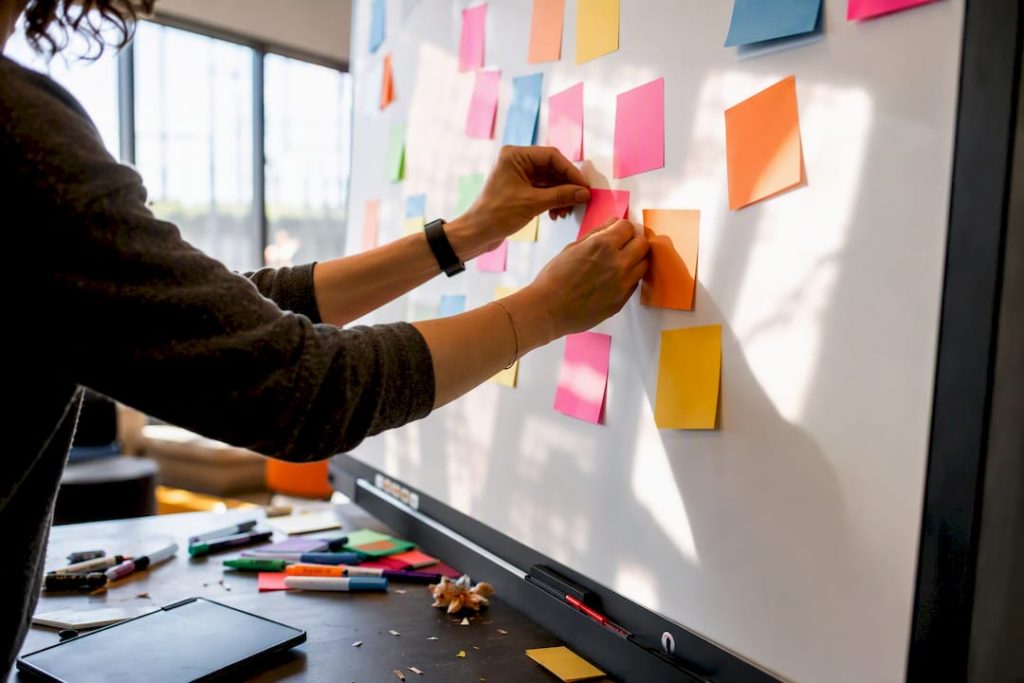
The fastest way to run sprint planning is a board that makes the Sprint Goal obvious, shows the backlog items selected for the sprint, and includes a plan for the delivery area you can break into day-sized tasks. This layout mirrors the three planning topics in the Scrum Guide, keeps the meeting inside its timebox, and gives teams a real-time picture of their commitments. Three copyable templates below show how to build it, on a physical board or a digital canvas.
TL;DR:
- Using a designated delivery lane limited to about six tasks per person per day prevents the board from turning into an unmanageable task list.
- For two-week sprints, allocate roughly four hours for planning, with the board displaying the Sprint Goal, selected backlog items, and a daily breakdown for tasks.
- Digital boards should have pre-seeded backlog items, a visible countdown timer, and a dedicated facilitator to ensure efficient remote sprint planning.
- Separating the planning and execution boards helps maintain clarity by keeping the Sprint Goal visible and avoiding clutter from real-time work updates.
- Overly broad backlog items or incomplete updates during daily scrums cause planning boards to become unreliable, emphasizing the need for constant revisiting and proper linkage to tracking tools.
Table of Contents
- Preparing your board before the planning session
- Three whiteboard templates you can copy today
- Running the planning session step by step
- Making it work for remote and hybrid teams
- Where sprint planning boards go wrong
- Templates and workflows worth borrowing
- Governance and execution deserve separate spaces
- Try a sprint planning template built for this
- Where to go for the primary guidance
- Sources
- FAQ
Preparing your board before the planning session
A sprint planning whiteboard, physical or digital, needs a few essentials in place before anyone walks in or logs on. Skipping this setup is the most common reason planning sessions run long or produce a messy board nobody trusts afterward.
For a physical board, gather:
- A whiteboard or wall space at least six feet wide, divided into three or four columns
- Sticky notes in at least two colors, one for user stories and one for tasks
- Fine-tip markers for legibility and a camera or phone mount for remote viewers
- Magnets or tape if you plan to move story cards between sections during the session
For a digital board, the equivalent setup means choosing a template with pre-built columns, enabling sticky note colors for story versus task, and confirming everyone has edit access before the call starts.
Decide early whether your board uses columns (backlog, in progress, done) or swimlanes (one row per team member or per feature area). Columns work better for small teams tracking flow; swimlanes suit teams that need to see individual workload at a glance. Place the Sprint Goal in a fixed box at the top or left edge so it stays visible throughout the session, and reserve a dedicated plan for delivery area, usually the rightmost column, for task-level decomposition.
For hybrid sessions, position the camera so the entire board is visible, not just the section being discussed, and give remote participants a way to add stickies without asking someone in the room to do it for them.
Three whiteboard templates you can copy today
Different sprint types call for different board shapes. These three cover the situations most agile teams run into.
- Two-week development sprint template. Four columns: Sprint Goal, Backlog Items, Plan for Delivery, and Done. The Plan for Delivery column is subdivided by day (Monday through Friday, two rows), so tasks get placed under the day they’re expected to close. Best for feature teams running a standard two-week cadence.
- Maintenance and operations template. Three columns plus a triage lane: Incoming, Sprint Commitment, In Progress with a WIP limit of two or three per person, and Done. The triage lane sits above the main board and catches unplanned work before it disrupts the sprint. Best for support or ops teams balancing planned work with interruptions.
- Remote and hybrid digital template. Mirrors the two-week layout but adds linked issue-tracker IDs on each sticky, a dot-voting area for prioritizing backlog items, and a timer widget pinned to the top corner. Best for distributed teams that need the board synced with a separate tracking tool.
Each template uses color to separate story cards from tasks: one color for backlog items, a second for decomposed tasks, and a third reserved for blockers or risks so they stand out immediately.
Pro Tip: Cap your Plan for Delivery lane at roughly six tasks per person per day. Beyond that, the board becomes a task list instead of a plan.
Running the planning session step by step
Sprint planning on the whiteboard follows the same three topics the Scrum Guide outlines: why the sprint matters, what will be done, and how it will get done. The board should visibly produce answers to all three before the session ends.
- Topic One, the Sprint Goal: Draft it in the dedicated box first, before touching the backlog. A clear goal keeps the rest of the session focused and stops the team from just grabbing the next ten tickets in order.
- Topic Two, backlog selection: Move candidate items into the Backlog Items column using known velocity or capacity as the filter, discussing fit against the Sprint Goal as each one is added.
- Topic Three, the plan for delivery: Break each selected item into day-sized tasks directly in the Plan for Delivery lane, and assign an owner to each sticky before moving to the next item.
A one-month sprint’s planning session is timeboxed to a maximum of eight hours under the Scrum Guide, with shorter sprints scaled down proportionally, so a two-week sprint typically gets about four hours. Once the board reflects the Sprint Goal, selected items, and delivery plan, photograph it (or export the digital version) so the Sprint Backlog is ready to reference during Daily Scrums.
Making it work for remote and hybrid teams
A digital whiteboard needs a few features turned on before remote sprint planning starts smoothly. Atlassian’s overview of sprint planning tools points to infinite canvas space, sticky notes, and direct links to issue trackers as the features that let a digital board mirror a physical one without losing detail.
- Turn on a visible countdown timer so every participant can see how much of the timebox remains.
- Pre-seed backlog candidates onto the board before the call, so the meeting starts with discussion, not typing.
- Assign a facilitator whose only job is moving stickies and calling time, separate from whoever is talking through the backlog.
- Keep cameras on and the shared board maximized, not squeezed into a small window, so no one loses track of what changed.
Pro Tip: Assign a note owner for each sticky before the meeting ends, not after. Ownership decided in the room is far more reliable than ownership assigned later by message.
Teams running fully remote sessions often draw on setups similar to remote design sprint board examples or the facilitation notes in a guide to using a whiteboard inside Google Meet.
Where sprint planning boards go wrong
A few recurring mistakes turn a useful board into clutter. The fixes are simple once you know what to watch for.
- Mixing governance and execution on one canvas buries the Sprint Goal under dozens of shifting task cards. A layered approach, planning board separate from execution tool, keeps the plan readable.
- Backlog items left too broad or broken down too far both cause trouble. Aim for tasks a person can finish in a day or less.
- A board that isn’t updated during Daily Scrums stops reflecting reality within days. Link items to your tracking tool and revisit the board, not just the tracker, at each check-in, an approach covered in more depth in these retro board setup ideas.
Templates and workflows worth borrowing
The three templates above map closely to the layouts we’ve published for teams building their own boards from scratch. The two-week development template follows the same structure used in our remote design sprint board examples, and the delivery-lane decomposition approach echoes the setup steps in our retro board ideas guide.
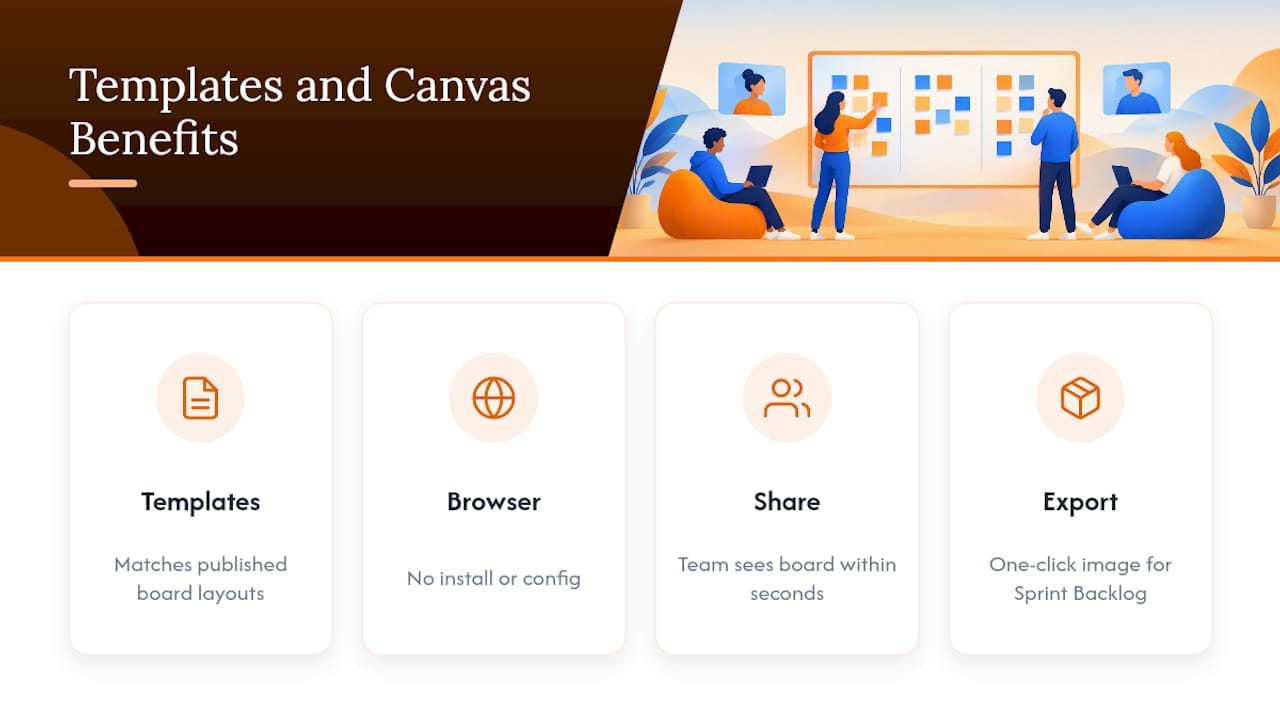
Working from a browser-based canvas means no software to install and nothing to configure before a session starts. A shared link gets the whole team looking at the same board within seconds, and exporting the finished layout as an image takes one click, useful for archiving a Sprint Backlog alongside meeting notes for later reference.
Governance and execution deserve separate spaces
The board’s job is to make the Sprint Goal and the plan visible, not to track every keystroke of daily work. Teams that try to run both governance and micro-execution on the same canvas end up with a board too cluttered to trust. Keep the whiteboard as the visible plan, and let a separate task tool carry the fast-moving execution loop underneath it.
— A
Try a sprint planning template built for this
Online Whiteboard gives teams a browser-based canvas with sprint planning templates ready to copy, no downloads and no account setup required to get a board in front of your team. Share a link, set up the Sprint Goal, backlog, and delivery columns as needed, and start planning quickly.
- Copy a template directly into a shared board and invite your team with one link.
- Export the finished Sprint Backlog as an image for your records or Daily Scrum reference.
- See a full example layout in our remote design sprint board guide.
Visit Onlinewhiteboard to open a board and try the layout on your next sprint.
Where to go for the primary guidance
- The Scrum Guide (2020) for the official Sprint Planning timebox and three planning topics.
- The Scrum Guide online edition for the Sprint Backlog definition.
- Atlassian’s sprint planning tools overview for digital whiteboard feature guidance.
- Aha!’s sprint planning template roundup for additional layout ideas.
Sources
- The Scrum Guide (2020)
- Scrum Guide (online HTML)
- Sprint planning tools – Agile | Atlassian
- 5 new templates for sprint planning | Aha!
FAQ
What is the 3:5:3 rule in Scrum?
The 3:5:3 rule is a practitioner mnemonic, not official Scrum Guide terminology, that summarizes Scrum’s structure as three artifacts, five events, and three accountabilities. It’s a memory aid some teams use in training, described in community resources like Webellian’s breakdown of the 3-5-3 rule.
Is Scrum still relevant in 2026?
Scrum remains widely used, though many teams now run it alongside spreadsheets, simple boards, or mixed tooling rather than one dedicated system, according to industry trend reporting on agile adoption. Its relevance depends less on the framework itself and more on whether a team keeps its board and backlog genuinely current.
What are the key differences between a sprint board and a Kanban board?
A sprint board tracks work scoped to a single, timeboxed sprint with a defined Sprint Goal, while a Kanban board tracks continuous flow with no fixed time boundary. Sprint boards typically reset each cycle, whereas Kanban boards carry work forward indefinitely with a focus on limiting work in progress.
Which tool is used for sprint planning?
Teams use anything from a physical whiteboard with sticky notes to digital canvases with built-in templates, sticky notes, and issue-tracker links, as described in Atlassian’s sprint planning tools guide. Online Whiteboard offers a browser-based option with ready sprint planning templates and no installation needed.
How detailed should tasks be on a sprint planning whiteboard?
Tasks work best when broken down to roughly a day or less of effort, since that level of detail lets Daily Scrums meaningfully track progress. Items left too broad tend to sit unchanged on the board for days, hiding whether the sprint is actually on track.