
You can use a whiteboard in Google Meet through the built-in Whiteboard option or an installed add-on. Click Activities in the bottom-right corner of your meeting screen and choose Whiteboard, or select an installed add-on from that same menu. Some add-ons need admin approval first, and guests outside your organization may only get view access. For sessions that need to outlast a single call, a browser-based tool like Onlinewhiteboard works without any install at all.
TL;DR:
- Whiteboard options in Google Meet depend on whether the built-in tool, an add-on, or a browser-based solution is used, with each suitable for different session needs.
- Admin restrictions and account sign-in issues are the most common barriers to accessing or editing whiteboards for all participants, especially external guests.
- The built-in Meet whiteboard is ideal for quick sketches in single sessions, but persistent collaboration requires a browser-based tool that survives beyond the call.
- Installing add-ons may require admin approval and current browser compatibility, with Chrome or Edge recommended for optimal performance.
- Using a separate browser-based whiteboard like Onlinewhiteboard offers flexibility and saves work across multiple meetings without needing install or admin approval.
Table of Contents
- How to Open and Share a Whiteboard for Google Meet
- Built-In Whiteboard, Marketplace Add-On, or a Separate Browser Tool?
- Why Your Whiteboard Might Not Show Up for Everyone
- Running a Whiteboard Session That Doesn’t Fall Apart
- When a Dedicated Whiteboard Beats Meet’s Built-In Tools
- Bring Onlinewhiteboard Into Your Next Google Meet Call
- Where to Go for Official Setup Help
- Sources
- FAQ
How to Open and Share a Whiteboard for Google Meet
Getting a whiteboard running mid-call takes under a minute once you know where Google hides the button. Here’s the exact sequence:
- Join or start your Meet call, then look for the Activities icon at the bottom-right of the screen. It sits alongside polls, Q&A, and breakout rooms.
- Select Whiteboard from the Activities panel, or choose your installed add-on if one appears in the list. Click Start a whiteboard to launch it for everyone on the call.
- If Whiteboard doesn’t show up, one of three things is happening: the add-on isn’t installed, your Workspace admin has restricted it, or you’re not signed into the Google account tied to your Meet session.
- No add-on installed? Open Google Workspace Marketplace in a new tab, search for a whiteboard tool such as Collaborative Whiteboard, and install it. This step may require sign-in and, in managed organizations, admin approval before it activates.
- Working around a blocked add-on? Open a Jamboard or browser whiteboard in a separate tab, then paste the share link into the Meet chat so participants can join it directly, according to how-to guidance from Claap.
- Invite participants by making sure they’ve clicked into the whiteboard tab or followed your pasted link. Everyone on the call sees the same canvas update in real time once they’re connected.
- Save your work before the meeting ends. Export to PDF, take a screenshot, or use the whiteboard tool’s built-in save function. Meet’s own whiteboard sessions don’t always persist reliably after the call closes.
If the Activities button is grayed out or the whiteboard option never loads, check three things fast: are you actually signed in, is the add-on installed on your account, and are you using Chrome or a recent version of Edge? Older browsers or Safari sometimes hide the controls entirely, per AddictiveTips’ walkthrough.
Built-In Whiteboard, Marketplace Add-On, or a Separate Browser Tool?
Three practical paths exist for running a whiteboard alongside Google Meet, and each fits a different kind of session.
- Built-in Meet whiteboard or Jamboard: fastest to launch, zero setup, ideal for a quick sketch during a single call. Persistence afterward depends on where the board saves, which isn’t always predictable.
- Workspace Marketplace add-ons: these bring richer drawing tools directly into the Meet window, but they require installation and sometimes admin sign-off before they’ll appear for everyone on the call, as Google’s own Marketplace permissions guidance explains.
- A browser-based whiteboard used alongside Meet: you open it in another tab or window, share the link in chat, or present it via screen share. This route tends to be the most flexible, since the board lives independently of the call and stays accessible afterward.
Pro Tip: If your session spans multiple meetings, like a semester-long class project or an ongoing product roadmap, skip the in-Meet options entirely. A board that lives outside the call survives long after the meeting link expires.
For a one-off brainstorm with your immediate team, the built-in whiteboard is fine. For a classroom that meets weekly or a client workshop with people outside your Workspace domain, a browser tool held open in a second tab avoids the install friction and permission checks altogether.
Why Your Whiteboard Might Not Show Up for Everyone
Permission problems are the most common reason a whiteboard fails to appear or can’t be edited by every participant.
- Admin-level Marketplace restrictions block add-ons from installing or appearing in Meet for users inside a managed Workspace domain, and this is the single most frequent cause reported for missing whiteboard options, according to Google’s Marketplace permissions documentation.
- External guests often get view-only access. Anonymous participants or people joining from outside your organization frequently can’t edit an in-Meet whiteboard even when they can see it.
- Device and browser quirks matter more than people expect. Mobile participants, shared conference-room devices, and dedicated hardware like Surface Hub sometimes render the Activities panel differently or omit it altogether.
Run through this quick checklist before assuming something is broken: confirm you’re signed into the correct Google account, verify the add-on is actually installed (not just bookmarked), and try switching browsers if the Activities icon looks unresponsive.
If none of that resolves it, the issue is almost certainly on the admin side. A quick message to your Workspace administrator or IT contact, referencing the Marketplace permissions page, usually clears it up faster than troubleshooting alone.
Running a Whiteboard Session That Doesn’t Fall Apart
A whiteboard with no structure turns into chaos the moment more than four people start drawing at once. Give the session shape before you open the canvas.
- Assign roles upfront: one person hosts and drives the board, another acts as scribe capturing key points, and a third keeps time if the activity has a deadline.
- Cap activities at 5 to 10 minutes. Open-ended whiteboard time drifts fast; a timer keeps energy focused.
- Use a simple template or grid rather than a blank canvas, especially for brainstorms. Sticky-note style columns work well for sorting ideas by category.
- Limit simultaneous editors in large groups. For anything past eight or ten people, split into smaller breakout boards and merge the best ideas into one master board afterward.
Save your results before anyone leaves. Export to PDF, take a screenshot, or use the tool’s native save function. Encourage anyone drawing freehand to use a stylus or tablet if they have one. Phone participants can still contribute text and sticky notes even without precise drawing controls.
When a Dedicated Whiteboard Beats Meet’s Built-In Tools
Meet’s native whiteboard earns its place for the quick stuff. A five-minute sketch to explain a workflow, a one-off vote on layout options, a single brainstorm that lives and dies within the call: the built-in tool handles all of that without asking you to install anything.
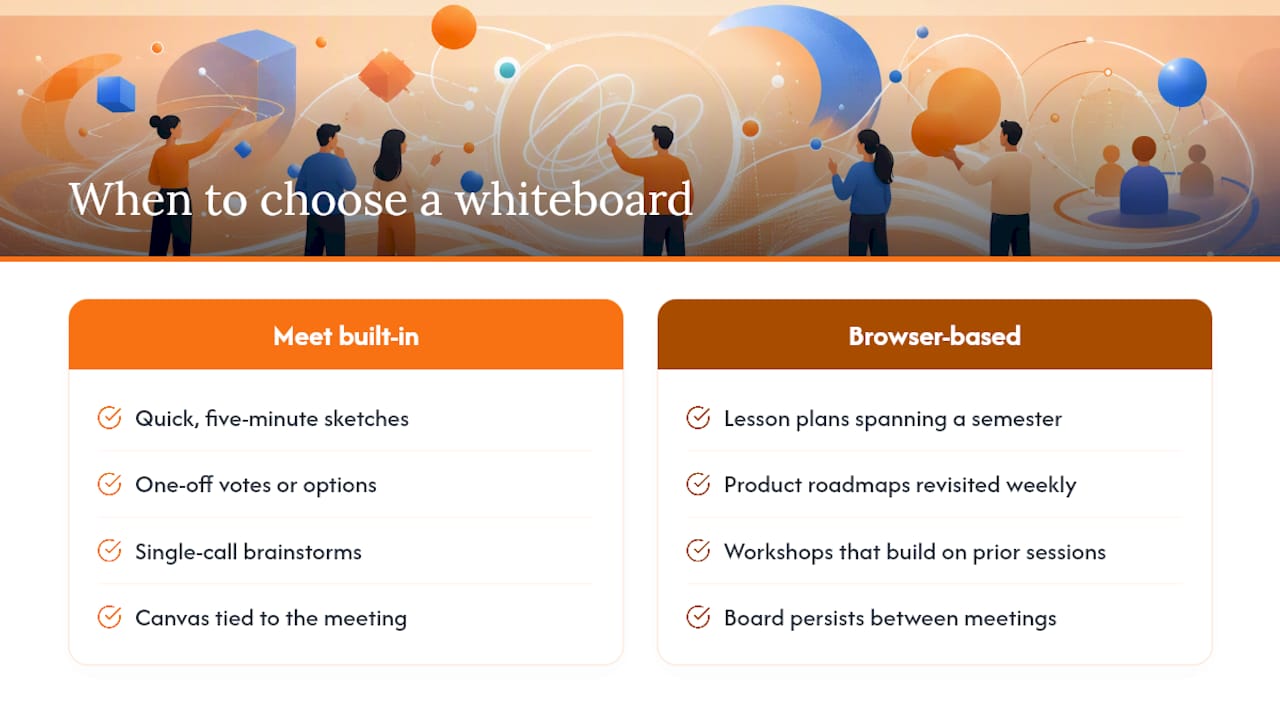
The calculation changes the moment a session needs to outlive the meeting. Lesson plans that span a semester, product roadmaps that get revisited weekly, or workshops that build on the previous session’s output all need a board that persists on its own terms, rather than one tied to a call that ends and takes the canvas with it.
That’s the gap a browser-based tool like Onlinewhiteboard is built to close. It runs in any browser tab, works alongside Meet without an install or admin approval, and stays where you left it between sessions.
— A
Bring Onlinewhiteboard Into Your Next Google Meet Call
This browser-based whiteboard tool offers a clean canvas with drawing, diagramming, and sticky-note tools accessible in a browser tab, requiring no download or sign-up before your meeting starts.
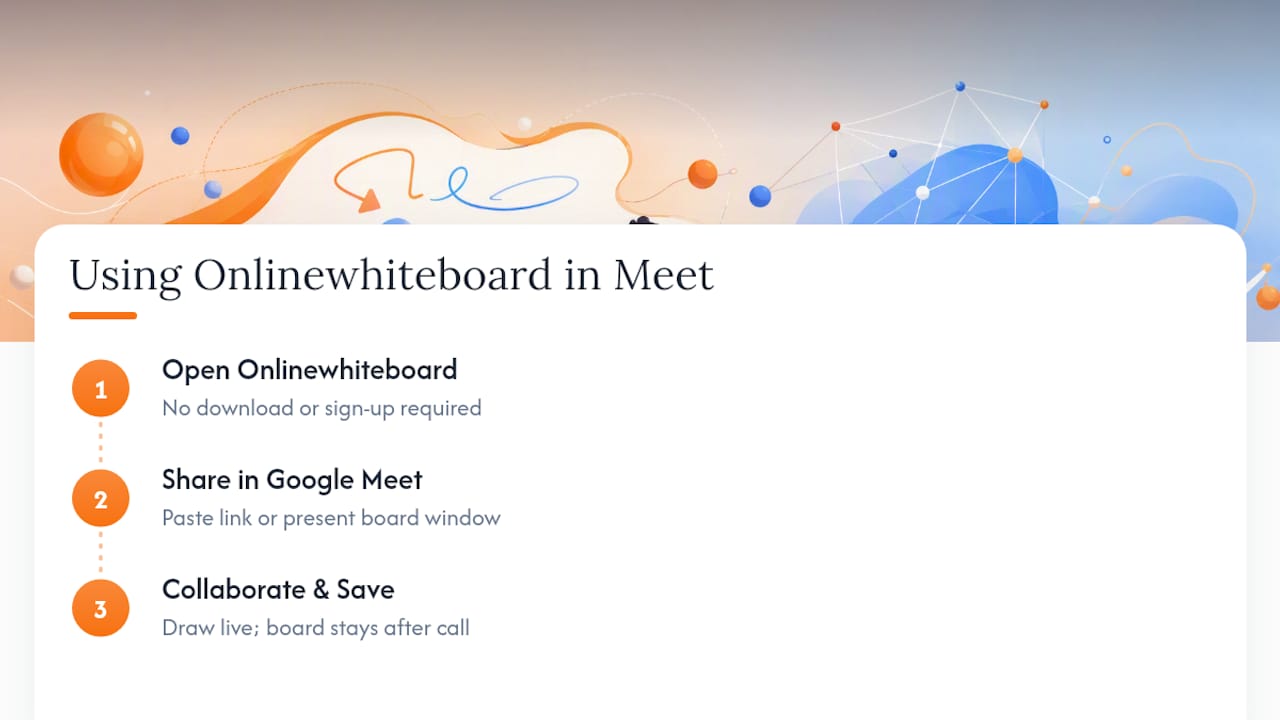
Using it inside a Meet call takes two steps: open a board at Onlinewhiteboard, then paste the share link into the Meet chat or present the board window directly so everyone sees it live. Collaborators can start drawing immediately, and the board stays saved after the call ends, which solves the persistence problem that Meet’s own whiteboard often can’t. For recurring classes or ongoing project work, that’s the difference between rebuilding your canvas every week and picking up exactly where you left off. Try a free board at Onlinewhiteboard before your next call.
Where to Go for Official Setup Help
For install questions or admin roadblocks, these pages carry the authoritative answers:
- Collaborative Whiteboard on Google Workspace Marketplace covers installation and what the add-on offers once it’s running inside Meet.
- Google’s Marketplace permissions support page explains how admin controls affect which add-ons your account can see.
- Claap’s guide to Jamboard and Meet whiteboards walks through saving and exporting boards after a call ends.
If an add-on refuses to appear no matter what you try, contact your Workspace admin or IT team before assuming the tool itself is broken.
Sources
- Collaborative Whiteboard — Google Workspace Marketplace
- Google Workspace Marketplace permissions — Google Support
- Claap
FAQ
How do I add a whiteboard to Google Meet?
Click the Activities button in the bottom-right corner during a call, then select Whiteboard or your installed add-on and choose Start a whiteboard, as outlined in AddictiveTips’ walkthrough. If nothing appears, check that you’re signed in and that the add-on is actually installed.
What is the best whiteboard for Google Meet?
The right choice depends on the session. For a quick one-off sketch, Meet’s built-in whiteboard works fine; for recurring classes or projects that need to persist across sessions, a browser-based tool like Onlinewhiteboard avoids install friction and keeps your board saved between calls.
Does Google have a whiteboard tool?
Yes, Google offers a built-in Whiteboard option inside Meet’s Activities menu, alongside Jamboard-based workflows for some accounts. Marketplace add-ons like Collaborative Whiteboard extend those tools with more drawing and export features.
Why is there no whiteboard in Google Meet?
If the Activities button doesn’t show a whiteboard option, it’s usually one of three things: the add-on isn’t installed, your Workspace admin has restricted Marketplace apps, or you’re on an outdated browser. Google’s Marketplace permissions page confirms admin settings are the most common blocker.
Can external guests edit a whiteboard in Google Meet?
Often not fully. Guests joining from outside your organization frequently get view-only access to in-Meet whiteboards, even when signed-in team members can edit freely. Sharing a link to a separate browser-based board tends to give external collaborators more consistent editing access.