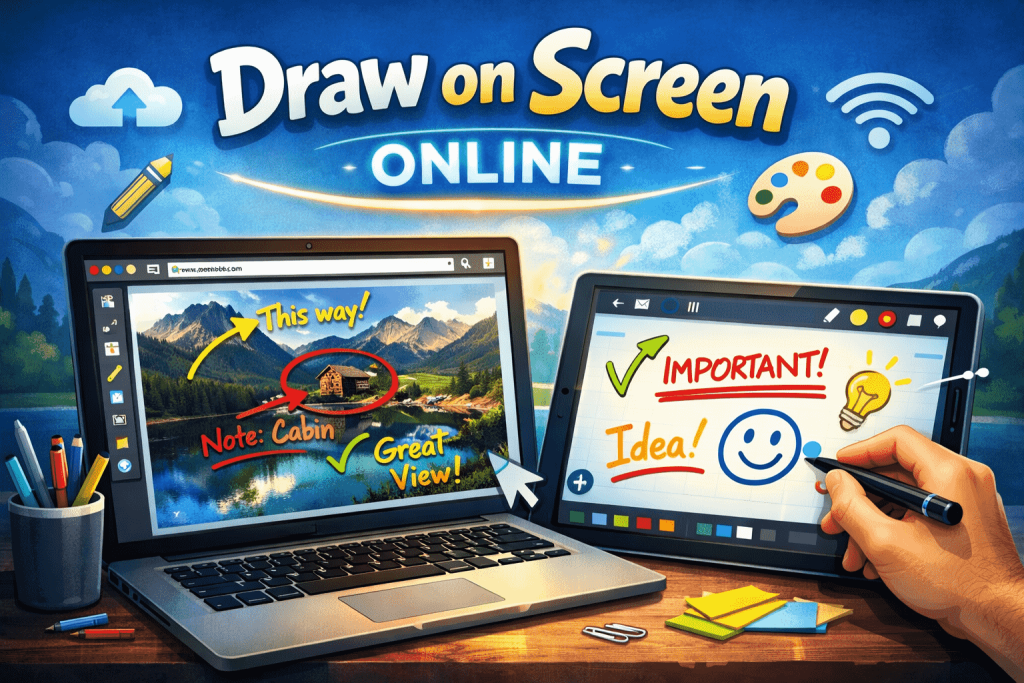
Introduction: Why Online Whiteboards Are Replacing Traditional Drawing Tools
The ability to draw on screen online without installing any app has become a core part of modern digital communication. Instead of relying on heavy software or physical whiteboards, users now prefer online whiteboard tools that run directly in the browser.
These tools allow you to visually explain ideas, collaborate in real time, and sketch concepts instantly. Whether you’re teaching, presenting, or brainstorming, being able to draw on screen online using a whiteboard significantly improves clarity and engagement.
Platforms like OnlineWhiteboard.co make this experience seamless by removing friction—no downloads, no installations, and no setup delays.
What Does “Draw on Screen Online” Mean in Online Whiteboards?
In the context of online whiteboards, “draw on screen online” means using a web-based canvas to:
- Create freehand sketches using a pen or brush tool
- Add shapes, text, and annotations
- Visualize ideas in real time
- Collaborate with others instantly via shared access
Unlike traditional desktop software, online whiteboards are:
- Fully browser-based
- Accessible without installation
- Designed for real-time collaboration
- Compatible with all major devices
This makes them ideal for education, business meetings, and creative workflows.
Why Online Whiteboards Are the Best Way to Draw on Screen Online
Online whiteboards have become the preferred solution because they combine simplicity, speed, and collaboration.
⚡ 1. Instant Access Without Installation
- Open the tool directly in your browser without downloading any software
- Start drawing within seconds. Online whiteboards that don’t require users to login eliminating setup delays completely
- Avoid system compatibility issues common with desktop apps
- Perfect for situations where quick visual explanation is needed
This makes online whiteboards ideal for urgent teaching sessions, meetings, or brainstorming moments.
👥 2. Real-Time Collaboration for Teams and Students
- Multiple users can draw on the same canvas simultaneously
- Changes appear instantly for everyone involved
- No need for file sharing or version control
- Ideal for remote teams, online classrooms, and group brainstorming
This transforms communication from static messaging into interactive visual discussion.
📱 3. Works on Any Device Without Limitations
- Fully compatible with laptops, desktops, tablets, and smartphones
- Supports touch input for mobile devices
- Works with stylus pens for precision drawing
- No dependency on operating systems or hardware specifications
This ensures that anyone can draw on screen online anytime, anywhere.
🎨 4. Simple and Beginner-Friendly Interface
- Clean and minimal design focused on usability
- Easy-to-understand tools like pen, eraser, and shapes
- No technical knowledge required to start drawing
- Designed for both beginners and professionals
This simplicity reduces learning time and increases productivity immediately.
Key Features of Online Whiteboards for Drawing on Screen
Modern online whiteboards come with powerful features designed for visual collaboration.
✏️ 1. Real-Time Drawing and Annotation Tools
- Draw freehand using smooth pen strokes that mimic real writing
- Highlight important areas during explanations or presentations
- Add arrows, diagrams, and connectors to structure ideas clearly
- Annotate documents or visuals directly on the canvas for better clarity
These tools make it easy to explain complex ideas visually instead of relying only on text.
🔗 2. Shareable Links for Instant Collaboration
- Generate a unique link for your whiteboard in seconds
- Share it with teammates, students, or clients instantly
- Allow others to join without requiring login or account creation
- Enable real-time collaboration across different locations
This removes barriers to participation and speeds up teamwork significantly.
🧠 3. Infinite Canvas for Unlimited Creativity
- Expand your ideas without running out of space
- Zoom in and out to organize large diagrams easily
- Create structured mind maps or system designs
- Arrange ideas spatially for better understanding
This is especially useful for complex brainstorming and project planning sessions.
📂 4. Cloud-Based Access and Auto-Saving
- Work is saved automatically in the browser or cloud
- No risk of losing drawings due to system crashes
- Access your whiteboards from any device at any time
- Continue work seamlessly across sessions
This ensures reliability and continuity in your workflow.
🎯 5. Multi-Purpose Drawing Tools
- Use pen, marker, and highlighter tools for different effects
- Insert shapes like circles, rectangles, and arrows
- Add text boxes for explanations and labels
- Customize colors for better visual organization
These tools help structure information more effectively during communication.
Best Use Cases for Drawing on Screen Online with Whiteboards
Online whiteboards are used across education, business, and creative industries.
🎓 1. Online Teaching and Education
Teachers can:
- Break down complex topics visually for better understanding
- Draw step-by-step solutions for math or science problems
- Highlight key concepts during live classes
- Engage students using interactive explanations instead of static slides
This improves student engagement and comprehension significantly.
💼 2. Business Meetings and Strategy Planning
Teams use online whiteboards to:
- Visualize workflows and business processes
- Brainstorm new product ideas collaboratively
- Map out strategies and project timelines
- Replace physical whiteboards in remote meetings
This makes communication more structured and efficient.
🧑💻 3. Product Design and Development
Designers and developers can:
- Sketch wireframes and UI concepts quickly
- Plan system architecture visually
- Collaborate on technical diagrams in real time
- Improve product planning with visual clarity
🎥 4. Content Creation and Tutorials
Creators use online whiteboards to:
- Record explainer videos with live drawing
- Create educational content visually
- Illustrate concepts for audiences
- Build step-by-step visual guides
How to Draw on Screen Online Using a Whiteboard Tool
Step 1: Open a Browser-Based Whiteboard
Visit a tool like OnlineWhiteboard.co directly in your browser.
Step 2: Start a New Canvas
- Click “Start Whiteboard” or “New Board”
- A blank canvas opens instantly
- No login or setup required
Step 3: Select Drawing Tools
- Choose pen, marker, or shape tools
- Adjust thickness and color for clarity
- Select text tool for annotations
Step 4: Begin Drawing on Screen
- Use mouse, touch, or stylus input
- Sketch diagrams, flowcharts, or notes
- Organize ideas visually as you go
Step 5: Share and Collaborate
- Generate a shareable link
- Invite others to join instantly
- Collaborate in real time on the same canvas
Benefits of Using Online Whiteboards to Draw on Screen Online
⚡ 1. Fast and Instant Access
- No installation or setup required
- Launch in seconds from any browser
- Ideal for quick explanations or meetings
👥 2. Real-Time Team Collaboration
- Multiple users can draw together simultaneously
- Changes sync instantly across all devices
- Improves teamwork and communication efficiency
🎨 3. Visual Communication Made Easy
- Helps simplify complex ideas
- Makes explanations more engaging
- Improves understanding through diagrams
🔓 4. Zero Barriers to Entry
- No login required for most tools
- Easy access for guests and collaborators
- Reduces friction in remote workflows
Online Whiteboards vs Traditional Drawing Tools
| Feature | Online Whiteboards | Installed Software |
|---|---|---|
| Installation | ❌ Not required | Required |
| Speed | ⚡ Instant | Slower setup |
| Collaboration | Real-time | Limited |
| Device Compatibility | Universal | Restricted |
| Ease of Use | Very easy | Moderate |
Best Practices for Drawing on Screen Online
- Keep diagrams simple and structured
- Use consistent colors for clarity
- Label all important elements
- Use arrows to show relationships
- Save or share boards regularly
Common Mistakes to Avoid
- Overloading the canvas with too many elements
- Using inconsistent shapes or symbols
- Not organizing ideas visually
- Forgetting to share collaboration links
Future of Online Whiteboard Drawing Tools
The future of draw on screen online tools is evolving rapidly:
🤖 AI-Powered Drawing
- Automatic diagram generation
- Smart shape recognition
- AI-assisted visual explanations
🎤 Voice-Controlled Drawing
- Create diagrams using voice commands
- Convert spoken ideas into visuals
🌐 Advanced Collaboration Features
- Real-time video + whiteboard integration
- Smarter multi-user editing systems
- Lower latency performance for global teams
FAQs
What does draw on screen online mean?
It refers to using a browser-based online whiteboard to sketch, annotate, or draw directly on a digital canvas without installing any software.
Do I need an app to draw on screen online?
No, tools like OnlineWhiteboard.co allow you to draw directly in your browser without any app.
Are online whiteboards free?
Yes, most online whiteboard tools are free and do not require installation or payment.
Can I collaborate while drawing on screen online?
Yes, online whiteboards support real-time collaboration with multiple users.
What devices support online whiteboards?
They work on:
- Desktop computers
- Laptops
- Tablets
- Smartphones
Final Thoughts
The ability to draw on screen online using modern online whiteboards has completely transformed digital communication. Instead of installing complex software, users can now instantly open a browser, start drawing, and collaborate in real time.
Tools like OnlineWhiteboard.co make this process fast, simple, and accessible to everyone.
If you need a frictionless way to explain ideas visually, online whiteboards are the most effective solution available today.