
An online whiteboard lets tutors and teachers give live, visual homework help by drawing, annotating, and exporting exactly what students need to review. Instead of describing a fraction problem or a labeling diagram out loud, you draw it, mark it up step by step, and hand the student a finished image before the session even ends. Edutopia has documented how this real-time visibility boosts student engagement and confidence, particularly in math, because teachers can see and comment on work the instant it happens rather than after the fact. A no-sign-up board like Onlinewhiteboard makes this practical, since there’s no setup delay eating into a typical session.
Three things happen in a single session:
- You annotate a student’s actual homework in real time, catching a misconception mid-problem instead of after grading it
- You build a worked example step by step, so the student watches the reasoning unfold rather than reading a finished answer
- You export the finished board as a PNG or PDF, giving the student something concrete to review later
Try it before your next session: open a blank board and import one worksheet. That single test tells you whether your setup, device, and internet connection are ready for a full tutoring block.
Key Takeaways
A whiteboard turns homework help from a verbal explanation into a shared, exportable visual artifact that students can review after the session ends.
| Point | Details |
|---|---|
| Real-time annotation drives engagement | Seeing student work as it happens lets tutors catch mistakes immediately and reach quieter students. |
| Setup should take under 5 minutes | Import the worksheet, set your pen colors, and confirm the student’s view before starting. |
| Templates prevent wasted time | Reuse a worked-example or labeled-diagram layout instead of rebuilding your canvas each session. |
| Export every session | Download a PNG or PDF and attach it to the LMS so students have something to review later. |
| Onlinewhiteboard removes setup friction | A no-sign-up, browser-based board lets tutors import, annotate, and export without installing software. |
Table of Contents
- Why Visual Whiteboards Work for Tutoring Homework Help
- How Do You Set Up a Homework-Help Session Fast?
- What Visual Templates Work Best for Homework Help?
- What Makes a Visual Tutoring Session Actually Effective?
- How Should You Export and Save Homework-Help Sessions?
- What Changed When I Started Using a Visual Whiteboard for Tutoring
- Give Every Homework Session a Visual Home Base
- Frequently Asked Questions
- Sources
Why Visual Whiteboards Work for Tutoring Homework Help
Homework help fails most often when a tutor can’t see what a student is actually doing. A phone call or a plain screen share hides the scratch work, the crossed-out attempts, and the exact moment confusion sets in. A shared visual canvas fixes that.
Edutopia’s classroom research found that teachers using online whiteboards could view every student’s board simultaneously, which let them identify who needed help fast and reach quieter students who rarely raise a hand. That same dynamic scales down to one-on-one tutoring: you’re not guessing where a student got stuck, you’re watching it happen.
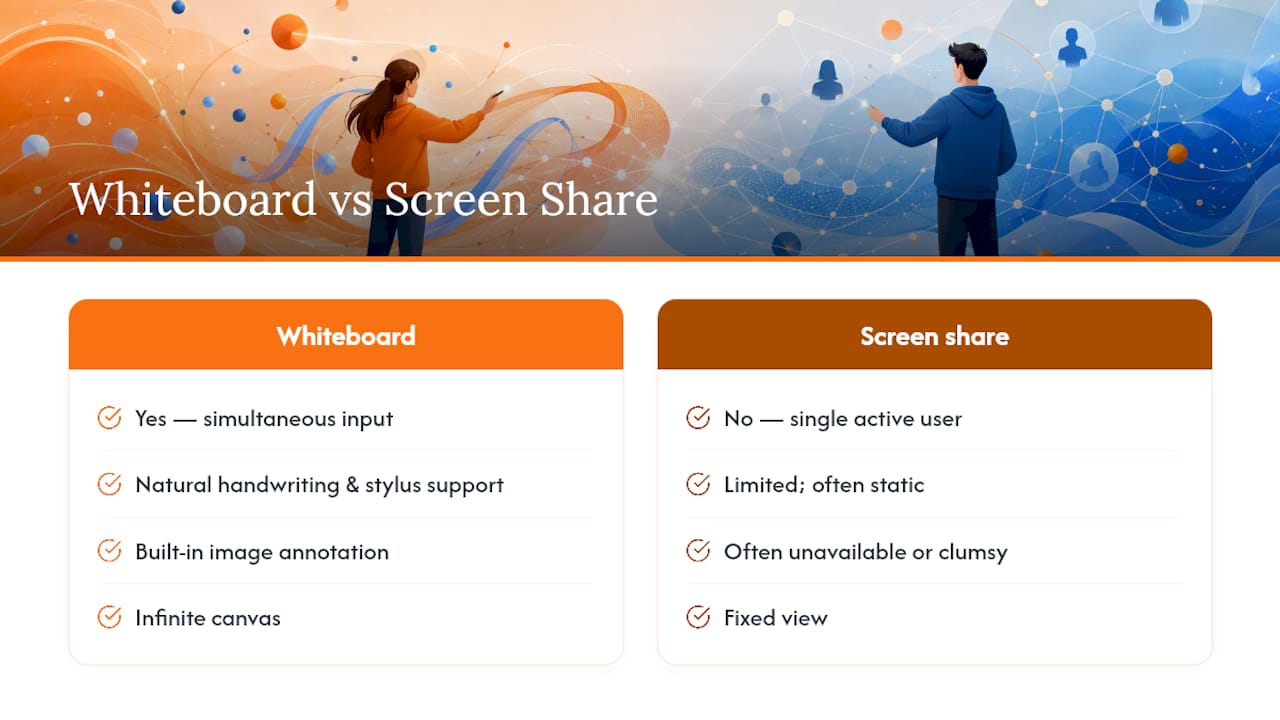
The technical case is just as strong. Interactive whiteboards support simultaneous multi-user input, handwriting, image annotation, and an infinite canvas, which makes them fundamentally more useful for tutoring than a static screen share where only one person can act at a time. Low drawing latency matters too. When strokes lag, students lose the thread of a worked example, so smooth, responsive drawing is a real performance requirement, not a nice extra.
Whiteboards do have limits. Weak internet connections cause lag that breaks the flow of a worked example, and a finger on a touchscreen produces messier handwriting than a stylus. For dense reading passages or long text annotation, pairing the whiteboard with a document viewer or a shared doc can work better than cramming everything onto one canvas.
How Do You Set Up a Homework-Help Session Fast?
Tech setup shouldn’t eat into tutoring time. Run through this before the student logs on:
- Open your board and pick your pens. Set one color for teaching steps and a different color (red works well) for corrections, so students can tell “here’s how it works” from “here’s your mistake” at a glance.
- Import the worksheet. Drop in the PDF or photo of the assignment and position it on the canvas where you have room to annotate around it.
- Share access. Send an invite link or start a screen share, then quickly confirm the student can see and draw on their end before diving in.
- Check your device. A tablet with a stylus gives you natural handwriting and precise annotation. On a mouse, slow down and use thicker lines, since fine mouse control is harder for legible writing.
- Export before you close. Download the board as a PNG or PDF and send it to the student or attach it to your LMS message.
Pro Tip: Test the student’s view for ten seconds before starting the real lesson. A student who can’t draw or scroll on their end will waste your first five minutes troubleshooting instead of learning.
What Visual Templates Work Best for Homework Help?
You don’t need to redesign your canvas every session. A handful of reusable layouts cover most homework-help scenarios, and Edutopia notes that dividing a canvas into slides or zones helps tutors control pacing instead of overwhelming a student with one long, cluttered board.
- Math worked example: Problem statement at the top, scaffolded steps below it, a blank zone for the student’s own attempt, then your annotations layered on top in a contrasting color.
- Science or history diagram: Import a labeled image or map, blank out the labels, and ask the student to fill them in or correct your intentional errors.
- ELA writing feedback: Paste the student’s draft into one zone, add inline suggestions in a second color, and leave a blank rewrite area where the student revises live.
- Multi-question homework: Give each question its own numbered zone or slide instead of stacking them vertically, so nothing gets lost in the scroll.
| Template | Best For |
|---|---|
| Worked example (problem → steps → attempt) | Math, chemistry, physics problem sets |
| Labeled diagram | Biology, geography, history maps and processes |
| Draft and revise | Essays, short answers, grammar correction |
| Zoned multi-question canvas | Any homework set with several separate problems |
Copy one of these layouts into a fresh board before your next session and you’ll cut setup time to almost nothing.
What Makes a Visual Tutoring Session Actually Effective?
The template gets you started. What you do inside it determines whether the student actually learns something.
- Start with a one or two minute diagnostic problem before touching the assigned homework, so you know exactly which misconception you’re dealing with.
- Keep explanations short and check in often instead of lecturing for ten minutes straight while the student watches passively.
- Annotate as you talk rather than talking first and drawing after. The visual and the explanation should land at the same moment.
- Ask the student to redo a step you just solved, in their own hand, before moving on. If they can’t reproduce it, they haven’t learned it yet.
- Use consistent colors: one for instruction, one for corrections, and stick to that system across every session so the student learns your visual shorthand.
Pro Tip: Before sharing a board publicly or saving it to a shared drive, scrub any student name or identifying detail from the file. It takes five seconds and it’s a habit worth building early.
How Should You Export and Save Homework-Help Sessions?
The session isn’t finished until the student has something to review. Export format depends on what happens next.
- PNG works for a quick recap image you drop straight into a text or email.
- PDF is better for anything the student needs to print or attach to a homework folder.
- SVG or full scene export preserves an editable copy if you or the student needs to keep building on the board later.
Some boards autosave locally as you work, but don’t rely on autosave alone. Downloading and attaching the file to your LMS or email is the safer habit, and boards that keep data local rather than uploading it to a server offer a real privacy advantage worth knowing about. Name your files with the student’s initials, the date, and a short note (“JD_0312_fractions”) so a folder of forty exports stays searchable months later.
What Changed When I Started Using a Visual Whiteboard for Tutoring
Before adding a whiteboard to homework-help sessions, a typical fraction problem meant fifteen minutes of verbal back-and-forth, guessing at where the confusion actually lived. Once annotation entered the picture, the same problem took five minutes, because the student’s exact error was visible on screen instead of buried in a verbal explanation.

The bigger shift was the export. Handing a student a finished, annotated image at the end of a session turned a one-time explanation into something they could revisit before a test. If you want a repeatable pre-session routine, the virtual tutoring session checklist covers the setup steps worth locking in early.
Give Every Homework Session a Visual Home Base
You’ve seen the templates and the setup checklist. Onlinewhiteboard is built to run all of it without asking you to install anything or manage a login system for every student. It loads instantly in the browser, so a last-minute tutoring request doesn’t turn into five minutes of technical friction. Importing a worksheet, annotating over it in real time, and exporting the finished board as a PNG or PDF all happen on the same canvas, with no separate tools required. For a tutor running three or four sessions back to back, that combination of instant access and simple export saves real prep time between students. Open a free board at Onlinewhiteboard before your next session and drop in a worksheet to see how quickly you can get a homework-help session running.
Frequently Asked Questions
What device works best for visual tutoring homework help?
A tablet with a stylus gives you the cleanest handwriting and the most precise annotations. A mouse works fine too, just use thicker line widths and slower strokes to keep writing legible.
Do I need students to create an account to join a homework-help board?
Not with a browser-based tool like Onlinewhiteboard. A shared link gets a student straight onto the canvas, which matters most for last-minute sessions.
What’s the best export format for homework review?
PNG for a quick recap, PDF if the student needs to print it, and SVG or scene export if either of you plans to keep editing the board later.
How do I keep student work private when sharing a board?
Strip names and identifying details before saving publicly, store files in a school-approved drive or LMS, and follow your school or organization’s data policy.
Sources
- Using online whiteboards to boost student engagement and confidence in math | Edutopia
- The Impact of Digital Collaboration Tools on Online Tutoring – Ifw Edu