The fastest reliable way to turn a whiteboard into a PDF is print-to-PDF when your browser supports it, or exporting an image and converting that image to PDF as a fallback. Use native PDF export only when your whiteboard tool offers framed or vector output. Most exports end up as flat images rather than editable files, so if your first attempt fails, reload the board, wait for it to finish rendering, and fall back to the image export path.
TL;DR:
- Using print-to-PDF via your browser generally produces sharper text compared to exporting images, especially for handouts and printed materials.
- Exporting images at the highest resolution and converting them manually is the most reliable fallback when direct PDF options are unavailable or the board won’t load properly.
- Native PDF export with frames or pages suits structured, multi-page boards but typically produces flat, non-editable files.
- Common export issues like blank or cut-off PDFs usually stem from incomplete rendering, incorrect print scale, or unsuitable page orientation, and can often be resolved with patience and adjustments.
- For quick, high-quality PDF exports from online whiteboards, using tools with built-in PDF support or browser print functions offers the best balance of clarity and convenience.
Table of Contents
- How to Export a Whiteboard to PDF: Comparing Your Options
- Step-by-Step Export Workflows for Common Situations
- Why Is My Whiteboard PDF Blank or Cut Off?
- How to Export a PDF From OnlineWhiteboard.co
- Which Export Method Fits Your Goal?
- Try OnlineWhiteboard.co for Simple, Instant Exports
- Sources
- FAQ
How to Export a Whiteboard to PDF: Comparing Your Options
Three methods cover almost every situation you’ll run into, and picking the right one depends on what you’re making and where your board lives.
Print-to-PDF works through your browser’s print dialog. You open the board, hit Ctrl+P (or Cmd+P on a Mac), and select “Save as PDF” instead of a physical printer. This usually produces the sharpest text because it can preserve vector elements and text rendering instead of just capturing pixels, which is why it tends to beat a converted screenshot when clarity matters for handouts or archived notes, according to Brainstormer’s testing on Microsoft Whiteboard exports.
Export image, then convert is the most universally reliable fallback because it sidesteps a live rendering step that can fail mid-print. You save the board as a PNG or JPEG at the highest resolution offered, then run that image through a converter, or print it to PDF from an image viewer. It’s not elegant, but it almost always works.
Native PDF export exists in a handful of tools that support frames or pages. Each frame becomes its own PDF page, and you often get to choose between vector and raster quality along with pagination controls, a setup Miro’s help documentation walks through in detail.
Here’s when to reach for each one:
- Need crisp, printable text for a handout? Use print-to-PDF.
- Board won’t cooperate, or the tool has no PDF button at all? Export the image and convert.
- Working with a large, structured board that needs multiple pages? Use native PDF export with frames.
- Need editable text later? None of these fully deliver that. All three produce flat, non-editable output in most tools.
Step-by-Step Export Workflows for Common Situations
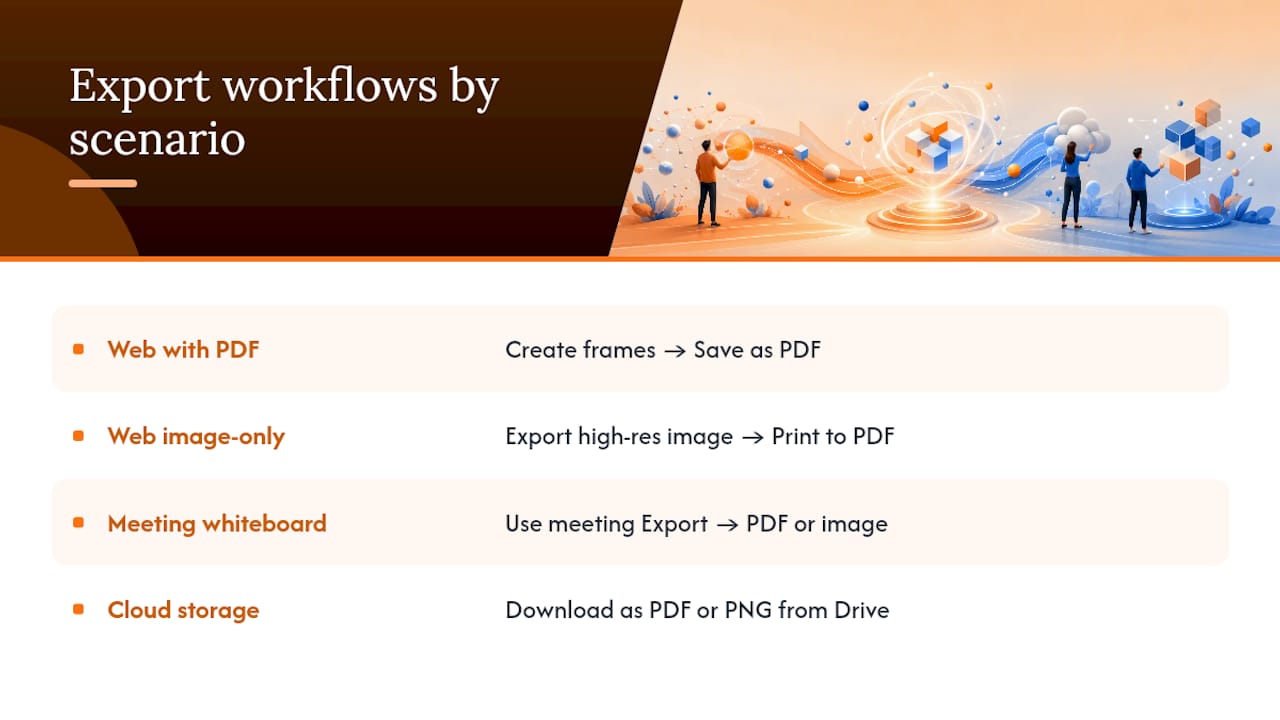
Your exact steps depend on where your board lives, so here are the four scenarios you’ll most likely hit.
1. Web whiteboard with native PDF support
Create frames or pages first if the tool supports them, since each one typically becomes a separate PDF page. Open the export menu (usually a toolbar icon or a menu labeled “Share” or “Export”). Choose “Save as PDF,” pick your quality setting (vector when offered, since it stays sharp at any zoom level), and export.
2. Web whiteboard with image-only export
Many popular tools, including Microsoft Whiteboard, only offer an image export rather than a direct PDF option, according to Microsoft’s own support guidance. Export the image at the highest resolution available. Open that image file, then use your browser or operating system’s Print to PDF function, or run it through a dedicated converter. Check page orientation before you finalize. A landscape board printed to a portrait page will cut off content on both sides.
3. Meeting whiteboard, during or after a call
Open your meeting platform’s controls (often under “More” or “Options”). Select Export, then choose PDF or image format directly from the meeting interface. Zoom, for instance, documents a built in path for saving a whiteboard as a PDF during a live session. If your platform lacks a direct PDF button, export the image and convert it afterward using the same method as scenario two.
4. Board stored in Google Drive or a similar cloud service
Select the file in your Drive, right click, and choose “Download,” picking PDF or PNG depending on what the platform offers. Google Jamboard files, for example, can be downloaded straight from Drive as a PDF without opening the app itself.
Pro Tip: If your whiteboard tool has no built-in PDF export at all, a browser add-on like the Whiteboard PDF Exporter for Firefox can capture the canvas and generate a PDF without you juggling image files manually.
Why Is My Whiteboard PDF Blank or Cut Off?
Export failures almost always trace back to one of four causes, and each has a quick fix.
- Blank PDF: The board likely didn’t finish rendering before the export or print command fired. Reload the page, wait a few seconds for every element to load, then try again. If it still comes out blank, fall back to exporting an image instead.
- Cut-off content: Your print scale or page orientation doesn’t match the board’s dimensions. Check the print preview before saving, switch to landscape if your board is wide, and use frames to break large boards into printable sections.
- Blurry or low-resolution text: Raster image exports lose sharpness when converted. Switch to print-to-PDF, or select vector output if your tool offers it, and always export images at the highest resolution setting available.
- Missing objects: You may lack export permissions, or hidden layers aren’t included by default. Confirm you have owner or export rights on the board, and check for a “include hidden objects” toggle before exporting.
Rendering timing, incorrect print scale, and browser quirks account for most reported blank-PDF failures according to testing notes from whiteboard export guides, which is why patience before printing solves more problems than any setting change.
How to Export a PDF From OnlineWhiteboard.co
The export controls on Onlinewhiteboard sit directly on the board toolbar, so you don’t need to dig through nested settings menus to find them.
- Save your board first, so nothing gets lost mid-export.
- Select the frames you want included, or leave nothing selected to export the entire board.
- Click Export on the toolbar and choose between image or PDF output, depending on what your handout or archive needs.
- Give the board a second to finish rendering before confirming the export. Boards with a lot of content need that extra moment.
- If a native PDF option isn’t selected, use your browser’s Print to PDF function instead for sharper text output.
Before you export anything, run through this quick checklist: save the board, confirm framing is set the way you want pages to break, and choose the higher-quality setting if one is available. Skipping the wait for full rendering is the single most common reason an export comes out blank or partial.
Pro Tip: When you need the crispest possible text for a printed handout, use Print to PDF from your browser rather than a straight image export, even on boards that offer a native PDF button. The text rendering usually comes out cleaner.
Which Export Method Fits Your Goal?
Match the method to what you’re actually trying to produce, not just what’s available. Print-to-PDF wins for anything going to a printer or needing legible text at a glance. Image-export-then-convert is your safety net for large boards or tools without a PDF button. Native PDF export with frames earns its place for multi-page workshop handouts where pagination and vector quality matter. Whatever you choose, confirm you have export permissions first and check for hidden content. It’s easy to miss a locked layer until the PDF lands in someone’s inbox missing half the notes.
— A
Try OnlineWhiteboard.co for Simple, Instant Exports
Onlinewhiteboard gives you export controls without the setup friction that slows down most whiteboard tools. There’s no software to install and no account gymnastics before you can start drawing. You open the app in your browser, sketch out your ideas, and export straight to PDF or image when you’re ready to share or archive the board. If you’ve been fighting blank exports or hunting for a hidden PDF button in another tool, try Onlinewhiteboard and see how quickly you can get from a blank canvas to a finished, shareable file.
Sources
- Export Microsoft Whiteboard to PDF and PNG | Brainstormer
- Zoom – Saving a Whiteboard as a .pdf during a meeting
FAQ
How Do I Export From Microsoft Whiteboard?
Microsoft Whiteboard offers an image export rather than a direct PDF button in many versions, according to Microsoft’s own support guidance. Export the board as an image, then use Print to PDF from your browser or a converter tool to finish the job.
How Do I Open a .Whiteboard File?
A .whiteboard file is a proprietary format tied to Microsoft’s app and generally needs to be opened within Microsoft Whiteboard itself rather than a generic PDF viewer. If you need a shareable, universal format, export the board as an image or PDF first rather than sending the raw file.
Why Can’t I Export to PDF?
Most likely, your tool only supports image export, not a direct PDF button, which is common across several popular whiteboard apps. Try print-to-PDF from your browser as a workaround, and double check you have export permissions on the board if the option seems missing entirely.
Can I Download a Microsoft Whiteboard?
Yes, you can download a Microsoft Whiteboard as an image file, then convert that image to PDF using your browser’s print function or a converter. There’s no built-in one-click PDF download in many versions, so the image-then-convert path is the reliable route.
Does OnlineWhiteboard.co Support PDF Export?
Yes. The tool lets you export boards directly through the toolbar, choosing between image and PDF output depending on what you need for sharing or archiving.