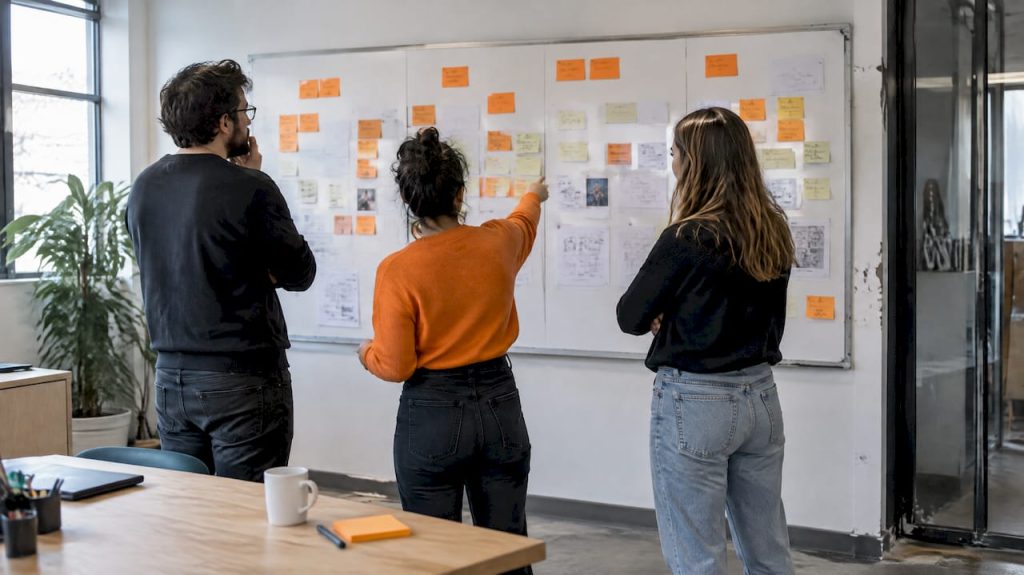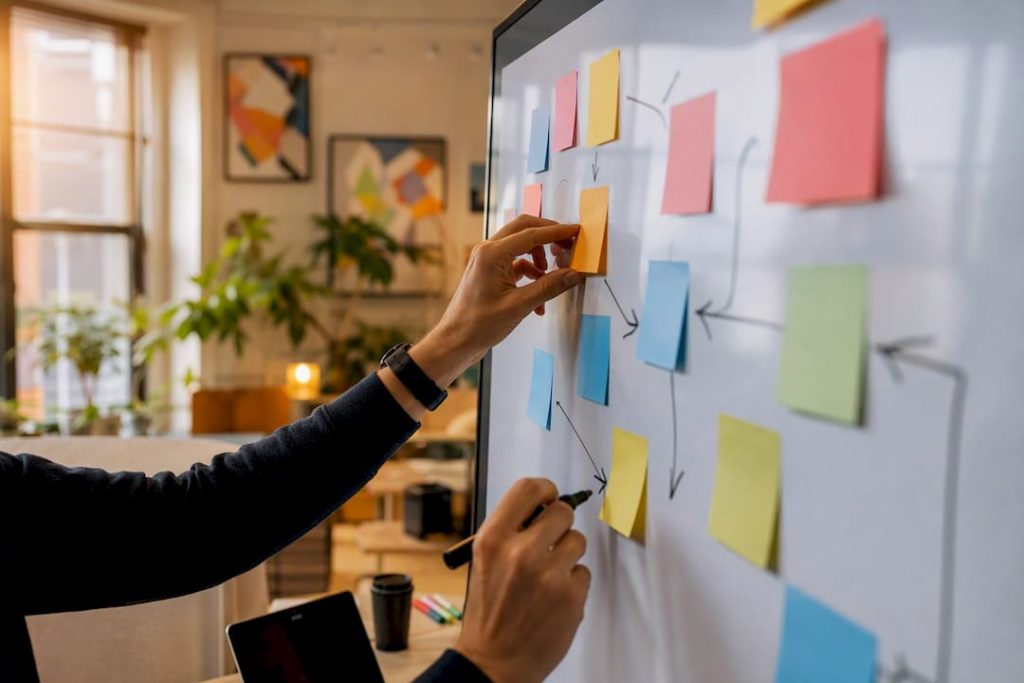
The best starting point for any virtual sprint is a set of phase-mapped boards you can import and run the same day. Three layouts cover most team needs: a full phase-mapped board (Understand, Sketch, Decide, Prototype, Test), a condensed 3-hour board for time-crunched sessions, a split-day board for teams spread across multiple time zones, and multi-day templates that organize sprints over 4 or 5 days for projects requiring deeper exploration. You can find these at Onlinewhiteboard, the official Remote Design Sprint Template adapted for 5-day sprints, and a 4-day Figma template with prebuilt parking lots, timers, and voting dots.
According to Made Tech, remote sprints can accelerate the path from initial requirements to an MVP prototype while being more cost-effective than travel-dependent workshops. That efficiency depends almost entirely on how well the board is prepared before the first participant joins.
Quick reference: which board fits your situation
| Situation | Recommended board |
|---|---|
| Full team, 4–5 days available | Phase-mapped or official 4-day/5-day remote sprint board |
| Time-crunched, single session | Condensed 3-hour board |
| Distributed across 3+ time zones | Split-day async board |
Key Takeaways
The most effective remote design sprint boards are phase-mapped, pre-locked, and paired with a pre-sprint context packet that eliminates catch-up time during the live session.
| Point | Details |
|---|---|
| Choose the right board type | Use phase-mapped for full sprints, condensed 3-hour for single sessions, split-day for multi-timezone teams. |
| Pre-sprint prep is non-negotiable | Define scope, assign a decision owner, and send a research packet 24 hours before the session opens. |
| Lock structural elements | Lock swimlane headers, timers, and storyboard grids before participants join to prevent accidental edits. |
| Customize for your team | Swap zones, rename activities, and build reusable module tiles using a toolkit approach for better outcomes. |
| Onlinewhiteboard for ready templates | Import sprint board templates instantly at Onlinewhiteboard with no installation and built-in export for post-sprint handoff. |
Table of Contents
- What do examples of remote design sprint boards actually look like?
- How to run a condensed 3-hour remote sprint
- How do you keep remote participants engaged and include non-designers?
- Technical setup and sharing best practices for remote boards
- How do you customize sprint templates for your team?
- Where to find templates and how to import them
- What remote sprints actually teach you about preparation
- Run your next sprint on Onlinewhiteboard
- Sources
What do examples of remote design sprint boards actually look like?
Each board type below maps to a distinct facilitation need. Copy the layout, swap in your prompts, and you are ready to run.
Phase-mapped sprint board
This is the workhorse layout. Divide the canvas into six labeled horizontal zones:
- Understand — Lightning demo sticky notes, expert interview summaries, and a shared “How Might We” (HMW) wall
- Map — A user journey map with entry point, steps, and target moment
- Sketch — Crazy 8s grid (eight cells per participant) and a refined solution sketch area
- Decide — Dot-voting area, a super-vote cell for the Decider, and a “Marry/Move/Kill” column
- Prototype — Storyboard lane (five to seven frames), screen flow annotations, and a component library strip
- Test — Recruitment checklist, test script template, and a results capture grid (participant rows × question columns)
Sample sticky prompts for the HMW wall: “HMW reduce the steps a user takes to reach X?” and “HMW make the error state feel recoverable?” Label voting dots in two colors: one for affinity votes, one for the Decider’s super-vote.
Prototype and test board
Keep this as a separate canvas linked from the main board. Lanes run left to right: storyboard frames, screen flow with annotation sticky notes, test script (task prompt, success criteria, observer notes), and a results grid. Recruitment checklist sits in a top-right corner frame so the facilitator can track status without interrupting the working area.
Split-day async board
Organize this board by time zone rather than phase. Three horizontal swimlanes (e.g., US East, Europe, Asia-Pacific) each contain the same activity columns. A shared “Parking Lot” frame in the center collects questions that need synchronous resolution. An “Artifact Repository” column on the far right holds exported images and decisions so late-joining participants can catch up without scrolling the full canvas.
Pro Tip: Lock the swimlane headers and the Parking Lot frame before the session opens. Participants moving stickies accidentally into the wrong lane is one of the most common sources of confusion in async boards.
How to run a condensed 3-hour remote sprint
Scope is everything in a short sprint. Narrow the problem to a single user moment and complete all research before the session opens. Made Tech recommends pre-sprint surveys and background materials to cut live meeting time, and Crema’s facilitation guide specifically names “Marry/Move/Kill” as an exercise that keeps decisions moving in intensive formats.
Suggested 3-hour timeline
| Time block | Activity | Board zone |
|---|---|---|
| — | Sprint goal alignment + map review | Understand / Map zone |
| — | HMW generation + Crazy 8s sketch | Sketch zone |
| — | Dot voting + Decider super-vote | Decide zone |
| — | Prototype outline (storyboard frames) | Prototype zone |
| — | Testing plan + next steps | Test zone |
Board edits for condensed sessions: collapse the Crazy 8s grid to four cells per participant, replace the full dot-voting wall with a quick heatmap overlay, and add a single “Marry/Move/Kill” column directly below the sketch area. Pre-fill the HMW prompts with two or three seed questions drawn from your pre-sprint survey so participants can react rather than generate from scratch.
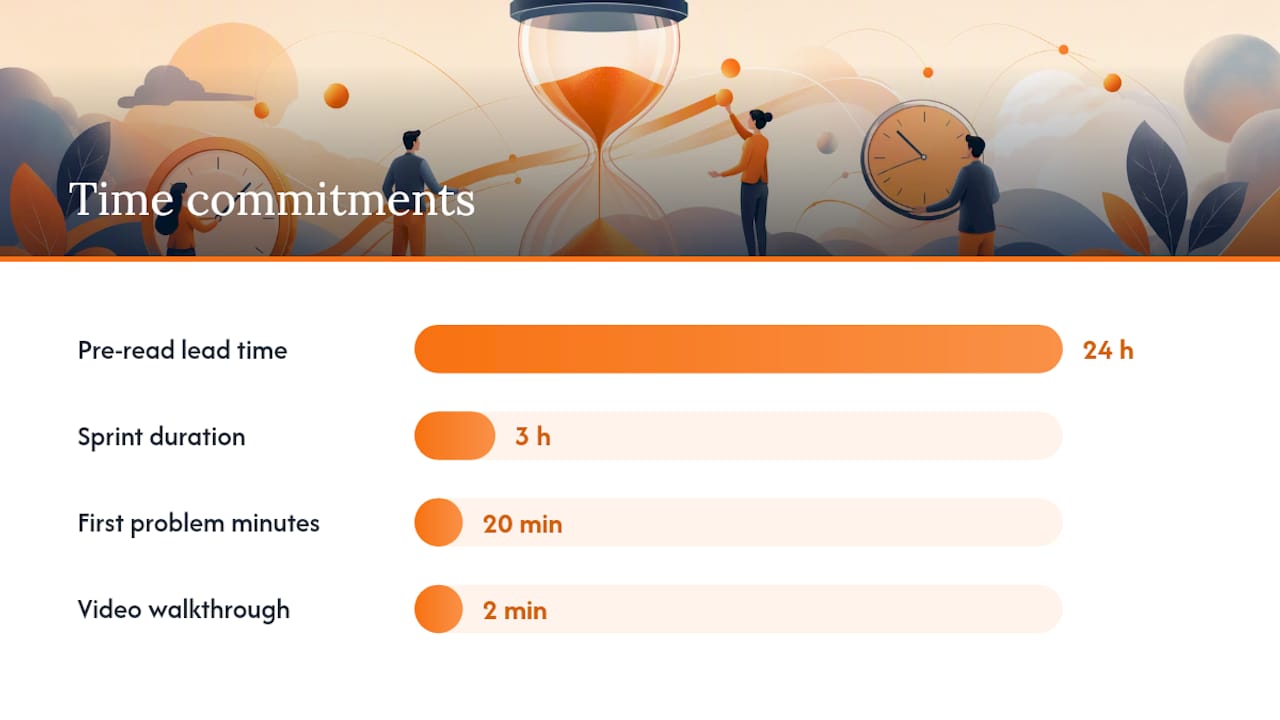
Pro Tip: Send participants a one-page pre-read PDF and a two-minute video walkthrough of the board 24 hours before the session. Teams that arrive oriented spend the first 20 minutes on the problem, not the tool.
How do you keep remote participants engaged and include non-designers?
Wikimedia’s experience running a virtual sprint is instructive: non-designers often find collaborative canvas tools intimidating, and some participants found even Figma difficult to navigate. Their recommendation is to use familiar tools where possible and add explicit warm-ups.
Facilitator checklist before the session opens:
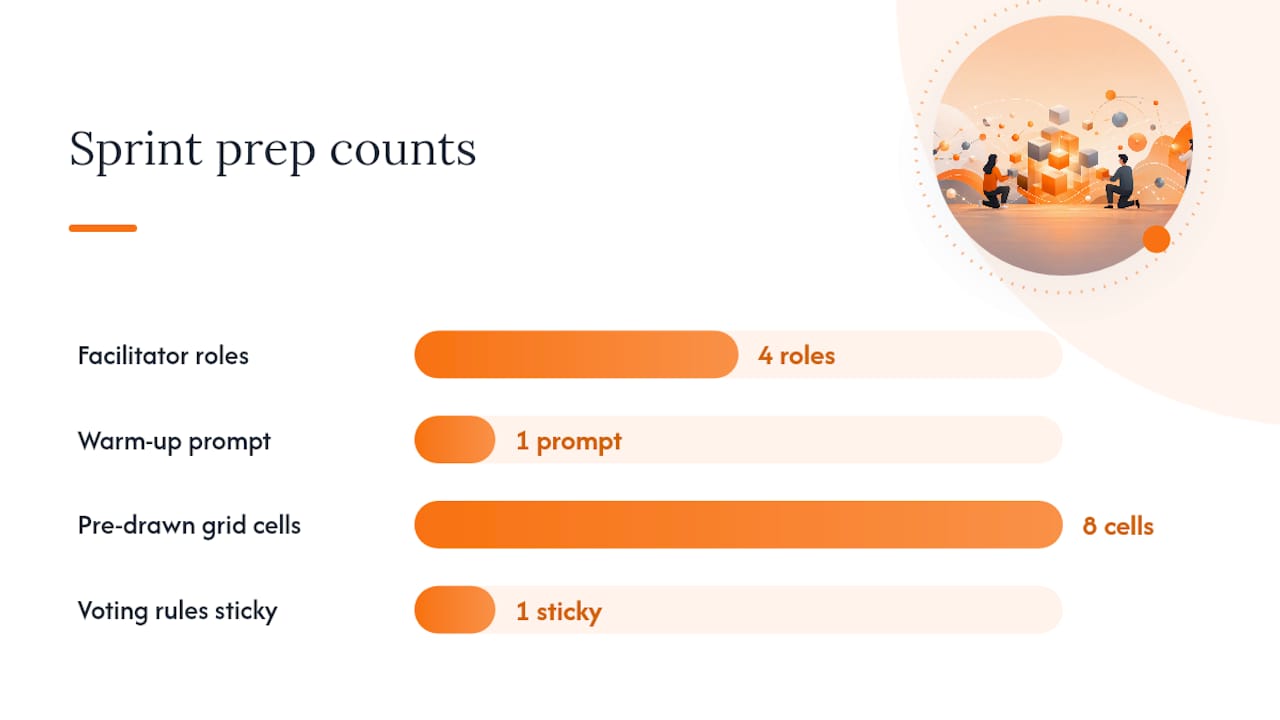
- Assign four roles in writing: facilitator, timekeeper, note taker, tech lead
- Add a “Warm-Up” frame at the top of the board with a single low-stakes prompt (e.g., “Drop a sticky with one word that describes the user problem”)
- Set explicit timebox reminders in the board as labeled countdown frames
- Publish voting rules in a pinned sticky: how many dots each participant gets, when voting opens, and who holds the super-vote
Pairing non-designers with designers reduces friction fast. Assign each non-designer a “sketch buddy” who can help them use copy-paste stencils instead of drawing from scratch. For the Crazy 8s round, provide a pre-drawn eight-cell grid with placeholder boxes so participants fill in ideas rather than build structure.
Script snippet for the HMW round: “Take a few minutes to review the map and add HMW insights to the board. Don’t filter — quantity beats quality here.”
For warm-up activities that translate well to sprint onboarding, a simple “two truths and a lie about the user” exercise gets participants writing stickies without pressure and familiarizes them with the canvas mechanics before the real work begins.
Technical setup and sharing best practices for remote boards
A clean technical setup prevents the kind of mid-session scramble that derails a sprint faster than any facilitation misstep.
- Browser compatibility check — Test the board in Chrome and Firefox 48 hours before the session. Ask participants to confirm their browser version in the pre-sprint email.
- Permission roles — Set facilitators to “editor,” participants to “commenter” or “editor” depending on the activity, and test observers to “viewer.” Create a separate read-only copy for test participants.
- Lock critical elements — Lock swimlane headers, timer frames, and the storyboard grid before opening the session. Crema’s guide confirms that locking key elements prevents accidental deletions during intense collaboration.
- Export and archive — Export a PNG or PDF snapshot at the end of each day. Store snapshots in a shared folder with a date-stamped filename (e.g.,
sprint-board-day2-2026-03-12). - Low-bandwidth fallback — Remove heavy image embeds from the live board and link to them externally. Participants on slower connections can view images without the board lagging.
For collaborative whiteboard platform options that handle large team sessions without performance drops, prioritize tools with infinite zoom and no-install access.
How do you customize sprint templates for your team?
Wayfair’s toolkit approach makes the case clearly: adapting standard sprint phases to your team’s internal processes produces more usable outcomes than following a rigid recipe. The practical version of that looks like this:
Customization checklist:
- Swap the Lightning Demos zone for an “Expert Insight” zone if your team runs stakeholder interviews instead
- Rename “Crazy 8s” to “Rapid Concepts” if non-designers find the original name confusing
- Add a company-specific “Assumption Map” tile between Understand and Sketch for product teams that run continuous discovery
- Create “module” tiles (self-contained activity frames) that can be copied between sprint boards
Three common variants:
- Validation-focused board — Expand the Test zone to three lanes (script, observations, synthesis) and compress the Sketch zone to one round
- Discovery-focused board — Add an Expert Insight zone and an Assumption Mapping zone before the HMW wall; reduce Prototype to a rough storyboard only
- Stakeholder-update board — Replace activity zones with three frames: Key Decisions, Open Questions, and Next Steps; designed for async review, not live facilitation
Governance: Name every board with a consistent convention ([Project]-[Sprint#]-[Date]), keep a “Templates” folder separate from active sprint boards, and label versions clearly (v1, v2, final) so teams can measure what changed between sprints.
Where to find templates and how to import them
The fastest path to a ready board is Onlinewhiteboard, which offers a browser-based canvas with template import, sharing, and export features and requires no software installation. The official Remote Design Sprint Template covers a full 5-day virtual sprint. The 4-day Figma template from LB Studio includes prebuilt parking lots, timers, and voting dots for four-day schedules.
Quick import steps for Onlinewhiteboard:
- Open the template library and duplicate the sprint board to your workspace
- Set participant permissions before sharing the link
- Run the warm-up frame first to orient the team
- Lock headers, timers, and storyboard grids before the session opens
Troubleshooting notes:
- If a participant cannot edit, check that their role is set to “editor” and that the board link is not a read-only export URL
- For slow-loading boards, remove embedded images and replace with external links
- To recover a previous state, use the version history or a saved snapshot export
Pro Tip: Keep a “facilitator copy” of every template that is never shared with participants. Duplicate it fresh for each sprint so your master template stays clean.
What remote sprints actually teach you about preparation
The boards matter less than the preparation behind them. Remote sprints can genuinely speed MVP decisions when stakeholders trust the process and the board arrives fully labeled, locked, and ready. The most common failure mode is not a tool problem: it is a context problem. Participants join a session with no shared understanding of the problem, spend the first 30 minutes catching up, and compress the creative work into the last hour.
Unlocked canvases cause a different kind of damage. One participant accidentally moves a swimlane header, another drags a voting dot into the wrong zone, and the facilitator spends five minutes restoring order instead of running the session. Locking template areas before the session opens is a five-minute task that prevents a 20-minute derailment.
The fix is a facilitator checklist: pre-sprint context packet sent 24 hours ahead, a 5-minute warm-up at session open, and all structural elements locked. Teams that follow this pattern consistently finish sprints with a testable prototype and a clear decision log.
Run your next sprint on Onlinewhiteboard
Onlinewhiteboard gives product managers and team leaders a no-install canvas that is ready the moment you share the link. Import any of the sprint board layouts described here, set participant permissions in seconds, and run your warm-up without asking anyone to download software. The free tier covers single-session sprints, and premium plans add team management, expanded storage, and a full template library for cross-team programs. Every session exports cleanly so you can hand off prototype frames and decision logs immediately after the sprint closes. Start your first sprint board today and have a fully configured canvas ready before your next planning call.
Sources
- Facilitator’s Guide to a Virtual, Global Design Sprint | Crema | Blog | Crema
- Making remote design sprints work for you – Made Tech
- How might we… conduct a virtual design sprint in ~3 hours?
- Our remote design sprint: a step-by-step toolkit
- 4-day remote design sprint Figma template
- The official Remote Design Sprint Template – Design Sprint