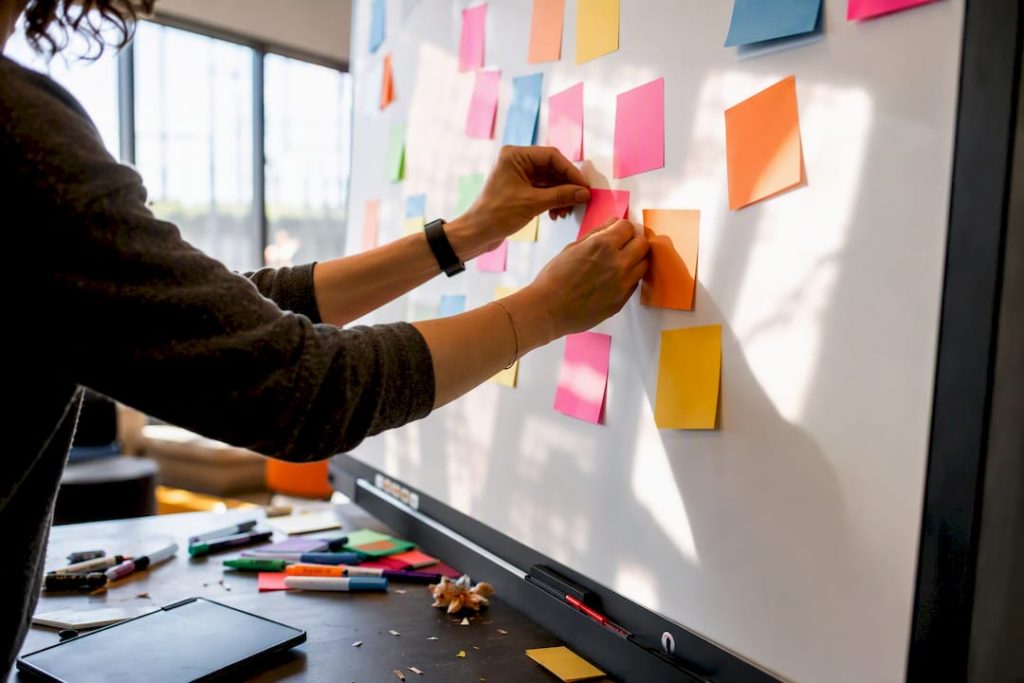
A design sprint whiteboard succeeds when it is organized into clear zones that mirror the five-day sprint itself: map, sketch, decide, prototype, and test. Following the GV design sprint methodology, teams that structure their board this way end the week with a validated prototype and documented learnings ready to act on. Tools like OnlineWhiteboard.co make this layout easy to set up before Monday even starts.
TL;DR:
- The whiteboard layout should mirror each day of the five-day sprint, with clear zones for mapping, sketching, deciding, prototyping, and testing to carry information forward effectively.
- Pre-labeling zones and ensuring sufficient space before the sprint begins helps maintain organization and reduces clutter throughout the week.
- Use standardized templates like user journey maps, sketch frames, and storyboards, scaled for team size, to streamline collaboration and transition seamlessly to digital formats.
- Assign roles, establish color codes, and enforce rules for posting and archiving to keep the board orderly and facilitate clear communication among participants.
- For remote sprints, share digital boards early, utilize features like real-time cursors and infinite zoom, and allocate off-topic notes to a separate parking area to prevent clutter and maintain focus.
Table of Contents
- Mapping the Five-Day Sprint Onto Your Whiteboard
- Reusable Templates and Layout Patterns for Any Sprint
- Facilitation Rules That Keep the Whiteboard Useful
- Remote Vs In-Person: What Changes on the Board
- Sprint-Ready Templates From OnlineWhiteboard.co
- Managing Clutter and Information Hierarchy
- Common Pitfalls in Whiteboard Facilitation
- Choosing Low-Tech or High-Tech Boards
- Get Started With Sprint-Ready Templates
- Sources
- FAQ
Mapping the Five-Day Sprint Onto Your Whiteboard
Each day of the sprint produces artifacts the next day depends on, so the board should be built to carry information forward rather than erased and restarted daily. The GV design sprint process moves from mapping to sketching to deciding to prototyping to testing, and your whiteboard zones should follow that same order, left to right or top to bottom.
Here is how the layout typically unfolds across the week:
- Monday: A map area for the end-to-end customer journey, a zone for expert interview notes, and a highlighted target marking the piece of the map the team will attack.
- Tuesday: An inspiration wall for existing solutions, individual sketch frames for each participant’s ideas, and a dedicated column for “how might we” notes generated earlier in the week.
- Wednesday: A critique grid where sketches get silent feedback, a voting area with dot stickers or digital equivalents, and storyboard lanes that start assembling the winning concept into a sequence.
- Thursday: A prototype build frame with a task checklist and an asset list tracking what still needs to be created before testing.
- Friday: A test script area, observation columns for each test participant, and space for immediate synthesis notes as patterns emerge.
Before sprint week begins, sketch this layout on paper or drop it into a digital canvas so the team walks in with zones already labeled. Google’s own Design Sprint Kit recommends capturing participant questions on a shared board early, which works best when the zones are ready before anyone starts writing.
Things to confirm before day one:
- The board has enough surface area for five days of artifacts without needing to erase anything.
- Each zone is labeled with the day and task it corresponds to.
- There is a dedicated space for the long-term goal and sprint questions that stays visible all week.
Reusable Templates and Layout Patterns for Any Sprint
A few core templates cover most of what a sprint board needs, whether you are working with sticky notes on a wall or an infinite digital canvas.
- User journey map: A horizontal timeline with labeled stages across the top and a row underneath for pain points, opportunities, and the chosen target moment.
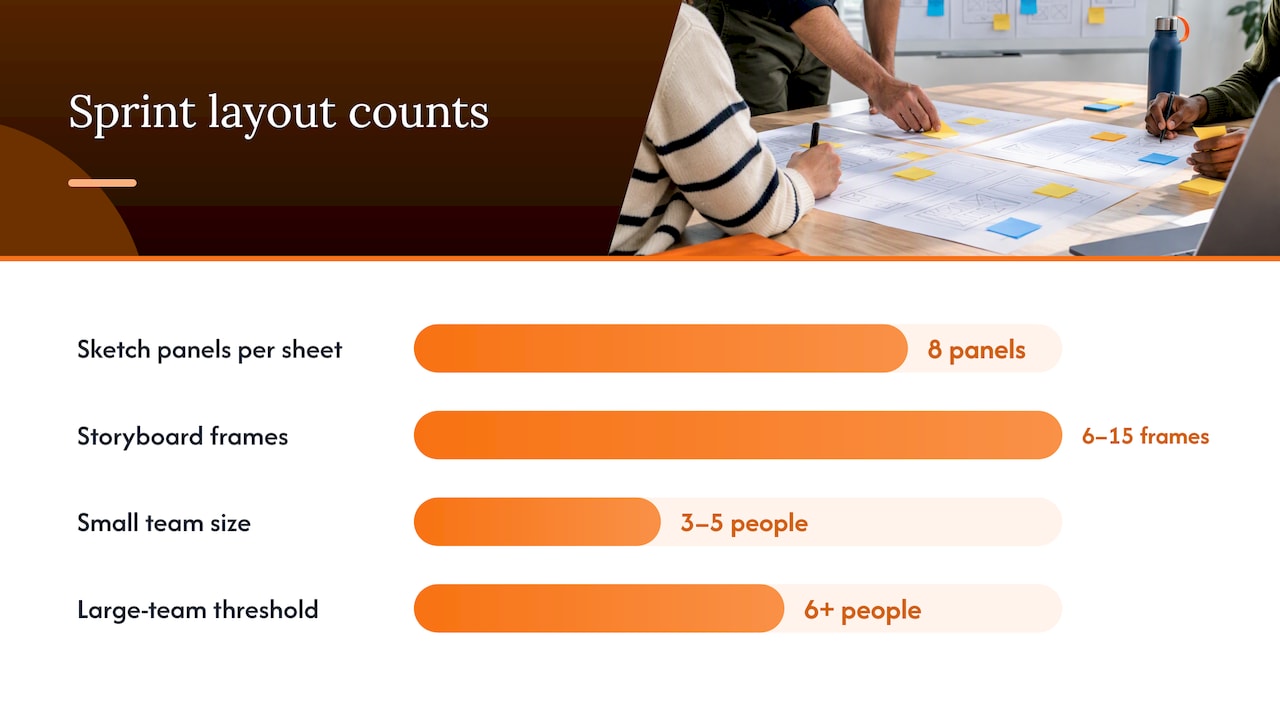
- Sketch frame and voting grid: Individual eight-panel sketch sheets (one idea per panel) posted side by side, with a voting row beneath each for dot stickers.
- Storyboard lanes: Six to fifteen horizontal frames representing the user’s path through the prototype, with a parallel lane for the corresponding test task at each step.
- Small teams (three to five people): One shared board section per person is usually enough; keep zones compact and skip breakout areas.
- Larger teams (six or more): Duplicate sketch and voting zones per sub-group, then merge into a single storyboard lane before Thursday.
Converting any of these to an infinite canvas is mostly a matter of preserving the same grid spacing and labels, since digital boards do not force the same space constraints as a physical wall.
Pro Tip: Build your storyboard lanes at a fixed width per frame so the whole sequence reads left to right without anyone needing to scroll sideways.
Facilitation Rules That Keep the Whiteboard Useful
A whiteboard only stays readable when someone owns the rules for using it. Without clear conventions, sprint boards tend to collapse into a pile of overlapping notes by Wednesday.
- Assign board roles early. The facilitator manages layout and pacing, the decider has final say on votes, and a note-taker handles anything that needs to be transcribed cleanly.
- Adopt a simple color code. Use one color for ideas, another for decisions, and a third for open questions, and stick to it all week.
- Label everything with initials and timestamps. This matters most during Tuesday’s sketching and Wednesday’s critique, when it is easy to lose track of who suggested what.
- Timebox read-alouds. When someone presents a sketch or a test observation, give them sixty to ninety seconds before moving to the next person.
- Enforce one poster at a time. Simultaneous posting during voting or sketch review creates visual noise and slows down the group’s ability to read the board.
- Archive at the end of each day. Photograph or export the board, then clear only what is no longer needed for the next day’s work.
These conventions echo what agile practitioners already recommend for shared workspaces: keeping boards readable and removing stale artifacts lowers friction for everyone using the space.
Pro Tip: Give the facilitator, not the decider, control over what gets erased. It keeps the board neutral and avoids turning cleanup into a political decision.
Remote Vs In-Person: What Changes on the Board
Remote sprints can follow the same structure as in-person ones, but a few adjustments keep the pace consistent.
- Share the board URL at the start of the week and set moderator controls so the facilitator can lock sections during voting.
- Replace physical dot voting with a digital sticker tool or a simple tally column, and assign turn-taking for sketching so contributions do not overlap on screen.
- Use breakout rooms for small-group sketch work, then reconvene on the main board for critique and storyboard assembly.
- Keep camera and lighting reasonable during Thursday and Friday demos, since test participants often react to visual cues as much as verbal ones.
- Reserve off-board documents for detailed notes or transcripts, but keep decisions, votes, and the map itself on the whiteboard so it remains the team’s single source of truth.
Sprint-Ready Templates From OnlineWhiteboard.co
OnlineWhiteboard.co gives sprint teams a blank, real-time canvas that opens in a browser with no downloads, which matters when a team needs to start mapping within minutes of a kickoff call. The Remote Design Sprint Board Examples for Teams page walks through sample layouts you can copy directly into your own board.
Before sprint week, confirm your tool supports features like real-time cursors so everyone sees who is editing which zone, infinite zoom for boards that grow past the original layout, and export options to preserve the week’s work once the sprint ends.
Managing Clutter and Information Hierarchy
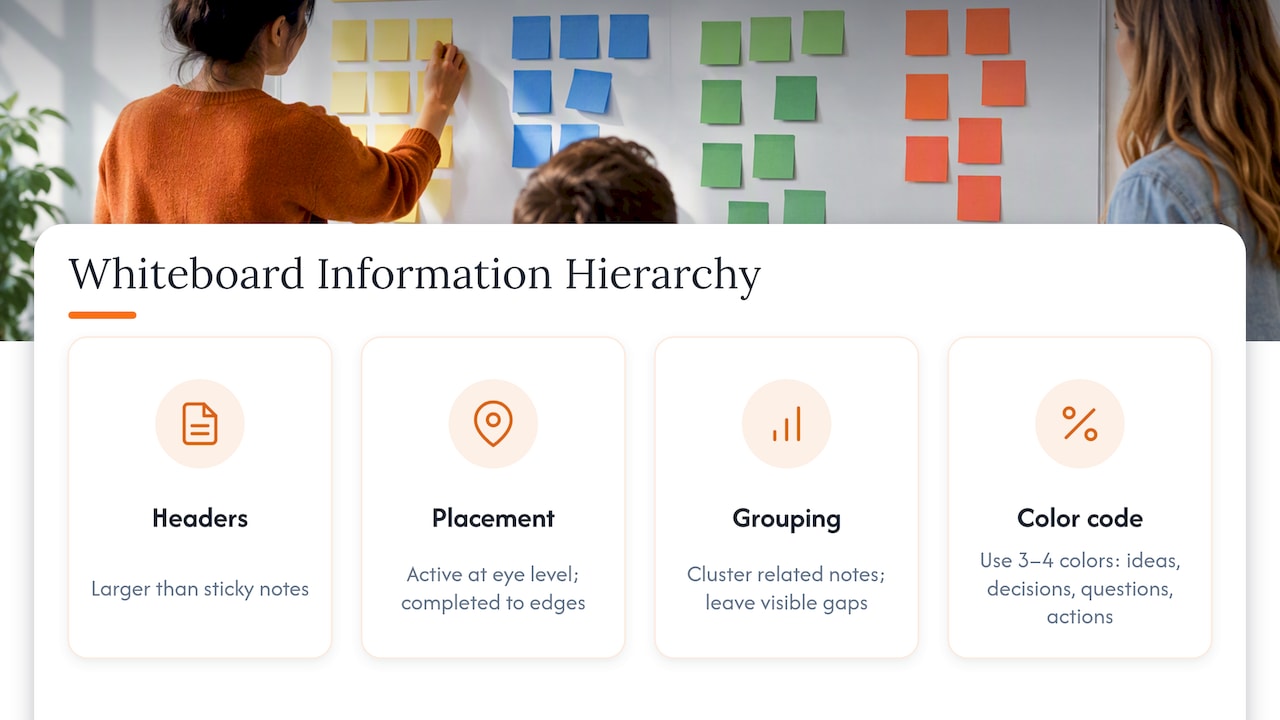
By Wednesday, most sprint boards are crowded enough that finding the right sticky note takes longer than it should. The fix is less about deleting content and more about layering it. Keep the day’s active work at eye level or center screen, and push completed days to the edges where they remain visible but out of the way.
Group related notes tightly and leave visible gaps between zones so the eye can separate one activity from the next. A map cluttered with expert notes mixed into the customer journey line is harder to read than one where notes sit in a clearly separated strip beneath it.
Size also signals importance. Make headers and zone labels larger than individual sticky notes so newcomers to the board can orient themselves without asking. If a zone becomes too dense to scan in under ten seconds, that is usually the signal to summarize it into a single note before moving on, rather than letting it grow further.
Color coding helps here too, but only if it is used sparingly. Three or four colors with consistent meaning (ideas, decisions, questions, action items) will do more for hierarchy than a rainbow of notes with no shared logic.
Common Pitfalls in Whiteboard Facilitation
The most common failure is letting the board become a free-for-all where anyone posts anywhere at any time. This usually happens when no one has been assigned to manage layout, and it compounds quickly once sketches, votes, and notes start overlapping.
A second pitfall is skipping the daily archive step. Teams that do not photograph or export the board before clearing space for the next day often lose track of who suggested what or why a particular idea got voted down, which slows the Friday synthesis considerably.
A third issue is treating the whiteboard as a parking lot for everything, including side conversations and unrelated ideas. This dilutes the zones that actually matter and makes the board harder to scan. The fix is a small “later” or “parking lot” corner where off-topic items can live without cluttering the main flow.
Finally, remote sprints sometimes lose cohesion when the board and the video call feel disconnected, with people talking about sections no one else can see clearly. Sharing screen focus on the active zone, rather than the whole board, keeps remote participants aligned with what is being discussed.
Choosing Low-Tech or High-Tech Boards
Sticky notes on a wall move fast and lower social friction for first-time sprinters, but a digital board scales better for remote teams and preserves work automatically. Choose based on team size, how many people are remote, and whether you need the board again after Friday.
— A
Get Started With Sprint-Ready Templates
OnlineWhiteboard.co gives sprint teams a fast, no-install canvas built for exactly this kind of real-time collaboration. Visit the Online Whiteboard landing page or copy a layout from the remote sprint board examples to get your team’s board ready before Monday.
Sources
FAQ
What should be on a design sprint whiteboard on day one?
Monday’s board should include the long-term goal, a customer journey map, expert interview notes, and a highlighted target area the team plans to focus on. This layout follows the mapping phase of the GV design sprint process.
How do remote teams replace sticky note voting?
Remote teams typically use a digital sticker tool or a simple tally column instead of physical dot stickers, keeping the voting process visible to everyone on the call. The key is assigning a moderator to manage the voting zone so results stay clear.
What tool features matter most for a remote design sprint board?
Real-time cursors, infinite zoom, and export options matter most, since sprint boards grow quickly and need to be preserved once the week ends. OnlineWhiteboard.co supports real-time collaboration through a browser with no downloads required.
How do you keep a sprint whiteboard from becoming cluttered?
Group related notes tightly, leave visible gaps between zones, and archive each day’s work before starting the next one. A dedicated “parking lot” area for off-topic ideas also keeps the main zones focused.
Should sprint teams use physical boards or digital canvases?
Physical boards move faster and feel more natural for first-time participants, while digital canvases scale better for remote teams and preserve artifacts automatically. The right choice depends on team size, how many participants are remote, and whether the board needs to be reused later.