
A virtual tutoring session checklist is the single most reliable tool for ensuring every online session runs without wasted time, technical chaos, or disengaged students. Tutors who skip structured preparation report higher rates of mid-session disruptions and lower student satisfaction. This guide covers every stage of online tutoring preparation, from hardware checks and session design to contingency planning and personalization. Tools like Zoom, Google Classroom, Kahoot, and Onlinewhiteboard are referenced throughout because they represent the platforms most tutors already use or should consider.
1. Your virtual tutoring session checklist starts with technology
Technology failure is the leading cause of disrupted virtual sessions, and most failures are preventable with a 30-minute pre-session check. Test audio, video, and all digital links at least 30 minutes before your session begins. A failed microphone or broken screen-share link discovered mid-session costs far more time than the check itself.
Your technology setup checklist should include:
- Internet speed: Confirm a stable connection of 10 to 20 Mbps minimum for smooth screen sharing and video
- Audio and video: Test your microphone, speakers, and webcam using your platform’s built-in diagnostic tools
- Platform login: Verify your Zoom, Microsoft Teams, or Google Meet credentials and confirm the session link works
- Backup device: Keep a charged secondary device nearby in case your primary setup fails
- Lighting and background: Position a light source in front of you, not behind, and use a neutral or professional background
Pro Tip: Record a 60-second test video of yourself running through the session intro. Watch it back to catch audio distortion, lag, or framing issues you would not notice in real time.
2. How to structure your session for maximum learning

Session structure is the backbone of effective online tutoring preparation. A well-paced 60-minute session follows a proven four-part flow: a 5-minute introduction, a 10 to 15-minute baseline assessment, 30 to 40 minutes of targeted instruction, and a 5-minute wrap-up with next steps. Skipping any phase, especially the assessment, leaves tutors guessing at the student’s actual starting point.
Attention spans online are 30 to 40% shorter than in-person, which means instruction segments longer than 10 to 15 minutes without a break will lose most students. This is not a minor inconvenience. It is a structural problem that undermines the entire session.
| Session structure | Best for | Trade-off |
|---|---|---|
| Linear (intro, assess, teach, wrap-up) | First sessions and new topics | Less flexible for student-led exploration |
| Flipped (review pre-work, practice, reflect) | Returning students with prep materials | Requires reliable student preparation |
| Spiral (revisit prior content, add new layer) | Long-term tutoring relationships | Takes longer to show measurable progress |
| Microlearning blocks (5-10 min chunks) | Students with attention or focus challenges | Requires more transitions and planning |
The microlearning approach, which chunks content into 5 to 10-minute focused segments with brief comprehension checks, reduces cognitive load and improves retention. Pair each chunk with a quick poll, a typed response, or a whiteboard activity to reset attention before moving forward.
3. Which tools belong in every tutor’s toolkit
The right tools separate a functional virtual session from a genuinely engaging one. Tutors should organize their toolkit into four categories: live session platforms, learning management systems, engagement tools, and content creation tools.
Live session platforms:
- Zoom (breakout rooms, annotation, recording)
- Microsoft Teams (integrated with Office 365, strong for school districts)
- Google Meet (lightweight, works well with Google Classroom)
Learning management systems:
- Google Classroom for assignment distribution and progress tracking
- Moodle for open-source flexibility and detailed reporting
- Canvas for institutions needing structured course management
Engagement and interaction tools:
- Kahoot, Mentimeter, and breakout rooms for frequent participation opportunities
- Padlet for collaborative idea boards
- Nearpod for slide-based lessons with embedded quizzes
Content creation:
- Canva for visual lesson materials
- Loom for pre-recorded instructional clips
- H5P for interactive content embedded in an LMS
Free tiers on Kahoot, Padlet, and Canva cover most individual tutor needs. Premium versions of Nearpod and Loom add reporting and longer recording limits, which matter more for tutors managing multiple students. Explore collaborative whiteboard platforms to find the right fit for your live visual collaboration needs.
Pro Tip: Run every tool you plan to use in a solo test session the day before. Broken embeds and login errors discovered live are the fastest way to lose a student’s trust.
4. Contingency planning for when things go wrong
Every tutor needs a plan B, and the best ones build it before the session starts. Backup plans are non-negotiable for uninterrupted learning: pre-recorded clips, alternative communication channels, and downloadable materials for students with connectivity issues all belong in your preparation folder.
Follow these steps when a technical issue hits mid-session:
- Stay calm and communicate. Tell the student what is happening. Silence for more than 30 seconds creates anxiety and confusion.
- Switch to audio only. Turning off video reduces bandwidth demand and often stabilizes a shaky connection immediately.
- Send backup materials. Have a PDF or Google Form version of your activity ready to share via email or chat if the platform becomes unusable.
- Move to an alternate channel. A pre-agreed backup, such as a phone call or a secondary video link, keeps the session alive without a full restart.
- Use a parking lot. If off-topic questions or technical tangents arise, note them in a shared document and address them at the end. This preserves session focus.
- Follow up within 24 hours. If a session is cut short, send a summary of what was covered and what comes next. Students remember tutors who close the loop.
Quizzes converted to Google Forms serve as reliable backup activities when interactive tools fail. They require no special platform access and work on any device with a browser.
5. How to personalize sessions for different learning styles
Personalized tutoring is not about creating a unique lesson for every student from scratch. It is about setting SMART learning objectives, which are specific, measurable, achievable, relevant, and time-bound, that reflect each student’s actual gaps and goals. A student preparing for the SAT Math section needs a different session structure than one working through seventh-grade fractions for the first time.
Pre-session preparation reduces unknown variables that cause student anxiety, freeing cognitive space for actual learning. When students know what to expect and feel prepared, they engage more readily and retain more. This is why a short welcome message or agenda sent before the session pays dividends during it.
Personalization techniques that work in virtual settings:
- Formative checks: Use a quick poll or typed question at the start to gauge where the student is that day, not just where they were last session
- Choice in format: Offer the student a choice between two activity types, such as a diagram exercise or a written explanation, to match their preference
- Varied pacing: Some students need more wait time after questions. Waiting a full 5 seconds after asking a question allows processing and reduces rushed, inaccurate answers
- Blend instruction with practice: Alternate between direct explanation and student-led practice in roughly equal proportions
- Teach platform navigation: Effective digital tutoring also means teaching digital platform skills, not just academic content. Students unfamiliar with annotation tools or breakout rooms lose time and confidence
Pro Tip: Keep a short running note for each student, updated after every session, tracking which formats they responded to best. After three sessions, patterns emerge that make personalization nearly automatic.
Key takeaways
A complete virtual tutoring session checklist covers technology, structure, tools, contingency plans, and personalization in that order, because each layer depends on the one before it.
| Point | Details |
|---|---|
| Test tech 30 minutes early | Audio, video, and platform links checked before the session prevents mid-session disruptions. |
| Follow a four-part session flow | Intro, assessment, instruction, and wrap-up give every session a clear and productive shape. |
| Engage every 10 minutes | Attention drops sharply online; polls, quizzes, or whiteboard activities reset focus. |
| Build a contingency folder | PDFs, Google Forms, and backup contact methods keep sessions running when tools fail. |
| Personalize with SMART goals | Tailored objectives and formative checks make sessions more effective for each individual student. |
What I’ve learned from running virtual sessions that actually work
The tutors who struggle most with virtual sessions are usually the ones who treat technology as an afterthought. They show up two minutes early, discover their audio is not working, and spend the first ten minutes of a paid session troubleshooting in front of a student. That single experience erodes trust faster than any content gap ever could.
What I have found genuinely useful is treating the 30 minutes before a session as part of the session itself. Not as prep time, but as delivery time. When the tech is confirmed, the materials are loaded, and the agenda is visible, the actual teaching becomes almost effortless by comparison.
The 10-minute engagement rule changed how I think about pacing. Before I understood it, I would build 25-minute explanation blocks because the content felt connected. Students would nod along and then score poorly on the follow-up check. Chunking those same explanations into 10-minute segments with a quick Kahoot question or a whiteboard sketch in between produced noticeably better recall. The content did not change. The delivery rhythm did.
One thing most checklists miss is the value of silence. Virtual silence feels longer than it is, and the instinct is to fill it immediately. Waiting 5 full seconds after a question is uncomfortable at first, but it consistently produces more thoughtful student responses. Train yourself to count silently before jumping in.
Finally, update your digital skills regularly. The platforms tutors use in 2026 have features that did not exist two years ago. Tutors who explore those features, even briefly, find new ways to keep sessions fresh and students engaged.
Bring your sessions to life with Onlinewhiteboard
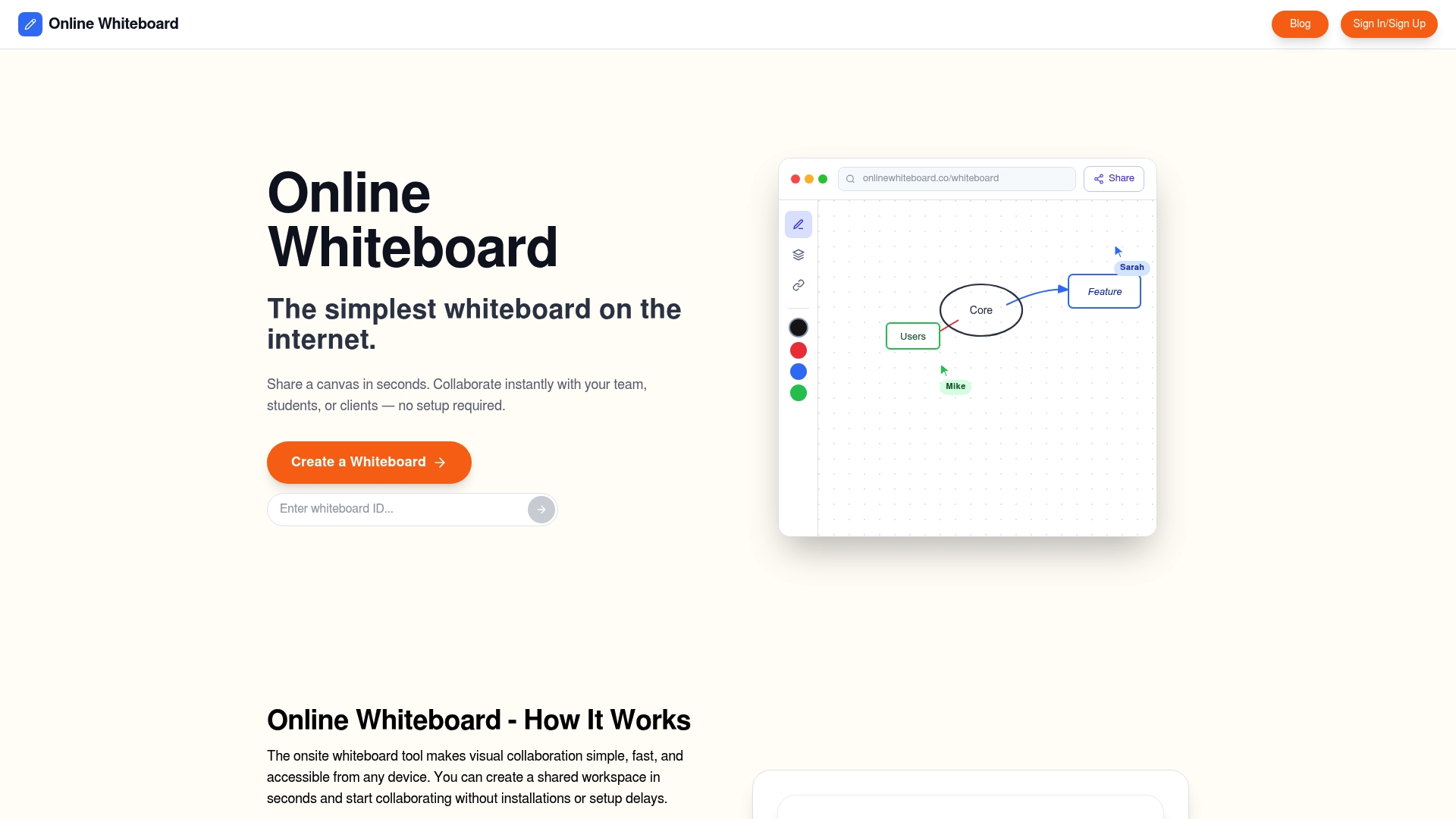
A checklist prepares you for a session. Onlinewhiteboard gives you the canvas to run it. With real-time drawing, diagramming, and shared annotation, tutors can explain concepts visually, map out problem-solving steps, and keep students actively involved rather than passively watching. There is no software to download and no complicated setup. You open it, share the link, and start collaborating. Whether you are working through a math proof, brainstorming essay structure, or mapping a science concept, Onlinewhiteboard fits naturally into any virtual tutoring workflow. Try the free version and see how visual collaboration changes the pace of your sessions.
FAQ
What should a virtual tutoring session checklist include?
A virtual tutoring session checklist covers technology setup, session structure, engagement tools, contingency plans, and personalization strategies. Each category addresses a distinct failure point that can disrupt learning if left unplanned.
How early should tutors test their technology before a session?
Tutors should test audio, video, and platform links at least 30 minutes before the session starts. This window allows enough time to resolve issues without rushing or delaying the student.
How often should tutors add interaction during a virtual session?
Tutors should introduce an engagement activity every 10 minutes, since online attention spans are 30 to 40% shorter than in-person. Polls, quizzes, and whiteboard exercises all qualify as effective resets.
What is the best backup plan when technology fails mid-session?
Switch to audio only first to reduce bandwidth load, then share a PDF or Google Form version of the activity via email or chat. A pre-agreed backup communication channel, such as a phone call, keeps the session running.
How do you personalize a virtual tutoring session?
Set SMART objectives specific to each student’s gaps, use formative checks at the start of each session, and offer a choice between activity formats. Keeping brief notes after each session reveals patterns that make personalization faster over time.