
Getting an online whiteboard set up for instant team or classroom use often means waiting through account creation, forced app downloads, or complex permission setups. Free tools usually cap collaboration features or lack real time sharing, while premium options sometimes reserve integrations and templates for their paid tiers. This guide compares core features and limits across four online whiteboard platforms so you can pick the one that matches your workflow need without slowdowns or hidden barriers.
Table of Contents
Online Whiteboard
At a Glance
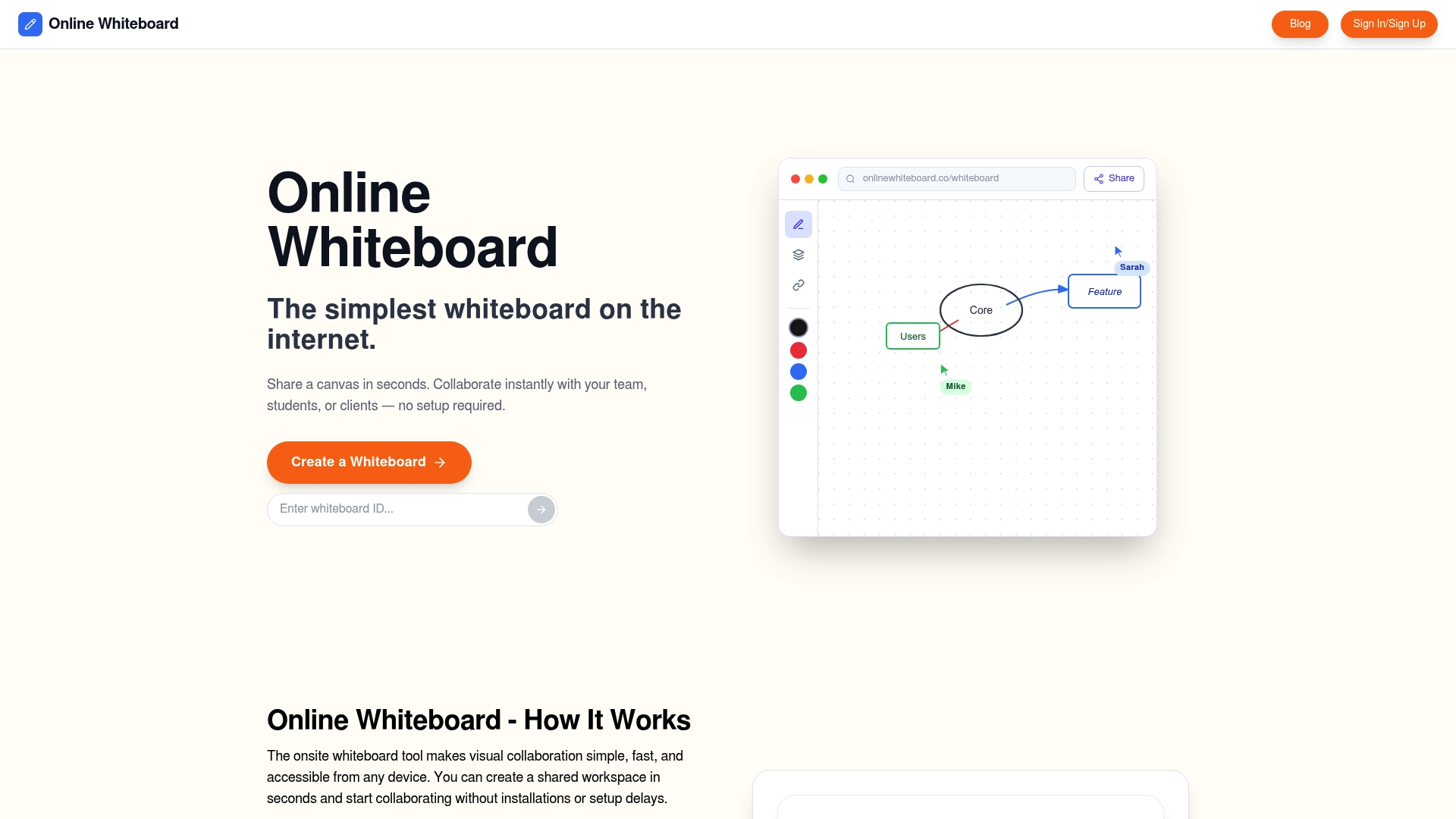
Free and sign-up free: you can open a new whiteboard with one click and share a private link so collaborators join immediately. The tool runs in any modern browser and updates drawings and notes in real time across devices.
Core Features
- Instant whiteboard creation with a single click, no installation required.
- Shareable private links that grant immediate access without accounts.
- Real-time collaborative drawing and writing for synchronous sessions.
- Cross-platform browser access so participants on phones, tablets, or desktops work together.
- Infinite zooming and flexible sketch tools for rough wireframes, flow sketches, and freehand brainstorming.
Key Differentiator
The single most specific advantage is how quickly a session starts. You do not need accounts, downloads, or setup to begin a collaborative board, which cuts the friction between having an idea and getting a group on the same canvas.
That low barrier changes meeting dynamics. Instead of spending five minutes on onboarding, teams and classes can proceed to sketching and problem solving the moment someone posts a link in chat.
Pros
- Quick setup and adoption. You can start a room and invite people in seconds so short ad hoc sessions stay productive.
- Accessible across devices. Because it is browser based, participants do not need a specific operating system or an app to join.
- Well suited for teaching and live participation. Teachers can invite students with a link and keep the session focused on drawing and responses rather than account help.
- Free to use during review and simple to operate. That removes budgeting questions for small teams or individuals testing visual collaboration tools.
- Minimal learning curve. The interface stays out of the way so first-time users contribute quickly.
Cons
- Lacks advanced diagramming and multimedia features found in specialist design or diagram tools, so complex technical diagrams or embedded video are not supported within the canvas.
Who It’s For
Students, teachers, remote teams, and individuals who need a fast, no-fuss canvas for brainstorming, lesson interaction, or quick diagramming. It is aimed at people who value immediacy over deep diagramming feature sets.
Unique Value Proposition
Create a private collaborative board and share access without accounts. That single capability removes the usual coordination step of inviting users to sign up or install software, making spontaneous collaboration practical for classrooms and chat-driven teams.
The result is lower friction in recurring workflows like daily standups, rapid ideation sessions, and live instruction where time spent logging in would otherwise interrupt momentum.
Real World Use Case
A marketing team drops a board link into Slack before a creative huddle. Designers and product managers sketch thumbnail concepts together, iterate live, and agree on a direction during the session. The whiteboard becomes the visual record they reference after the meeting.
Website: https://onlinewhiteboard.co
Excalidraw
At a Glance
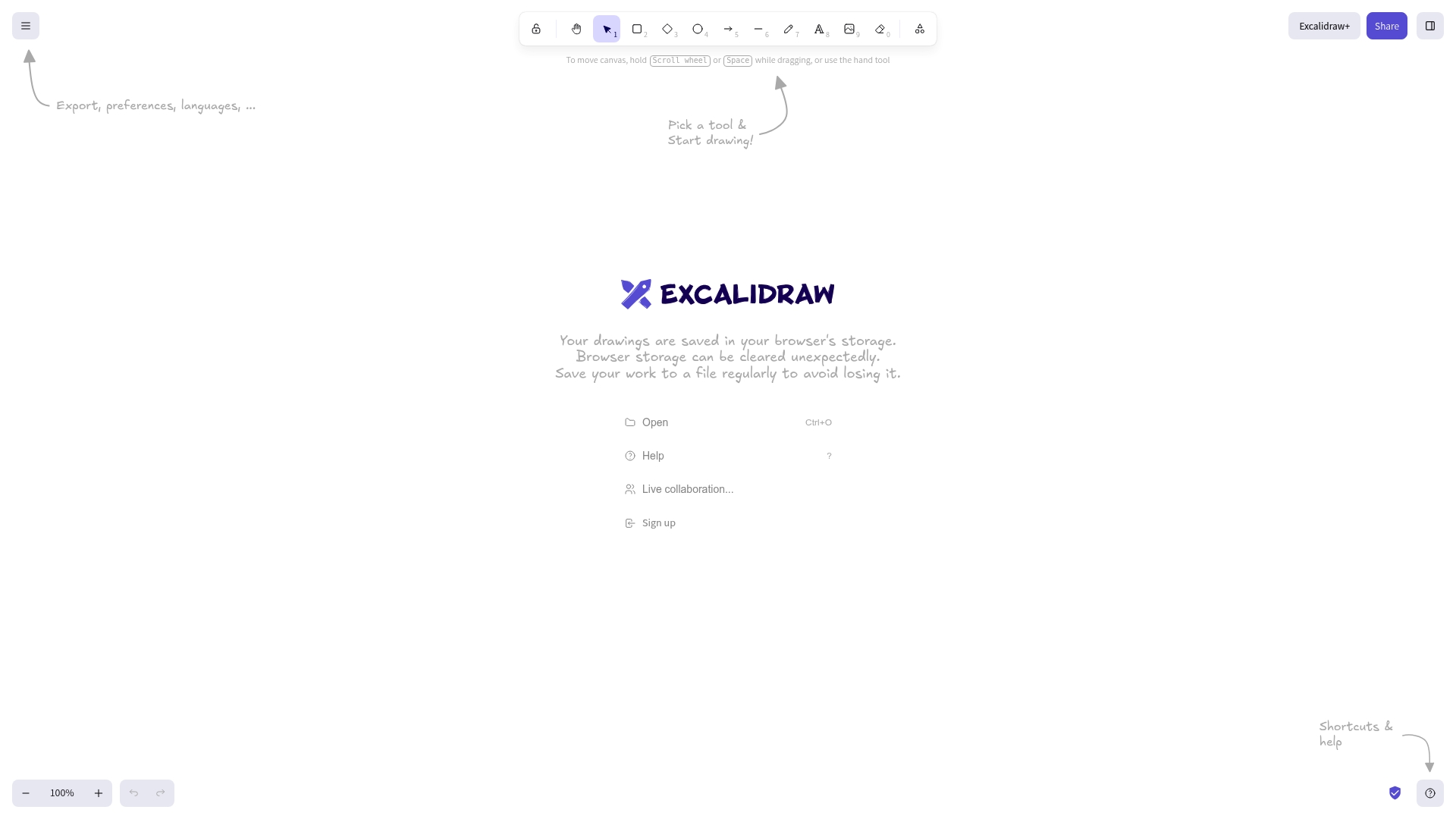
Work saves locally in your browser storage, so you can sketch without creating an account and keep files on your machine. The tool is freely accessible and intentionally minimal, which makes it fast to open, start drawing, and iterate during a live session.
Core Features
Excalidraw keeps the interface deliberately simple so you focus on ideas rather than menus. The main canvas tools are responsive and predictable, which matters when you need to capture a thought in seconds.
- Hand-drawn style sketching for quick, informal visuals.
- Real-time collaboration so teammates can draw and edit together.
- Browser-based with local storage so sketches remain in your cache without an account.
- Export options and language preferences for sharing quick PNGs or SVGs.
Key Differentiator
Excalidraw trades feature depth for speed and a familiar pen-and-paper feel. That focus on simplicity makes it faster to sketch rough flows and mockups than opening heavyweight diagramming apps. If you want an uncluttered canvas and a casual aesthetic, Excalidraw delivers that workflow without setup.
Pros
- Highly intuitive and easy to use. New participants can start drawing in under a minute with no onboarding.
- Clean distraction-free interface. The minimal toolset keeps attention on the canvas rather than tool selection.
- Excellent for quick hand-drawn sketches and brainstorming. Rapid iteration feels natural because the tools behave like freehand drawing.
- Stable performance during collaborative sessions. Multiple people editing the same board rarely cause lag in normal meeting conditions.
- Economical to adopt. Because it is freely accessible, you can introduce it to students or teams without budget approval.
Cons
- Lacks advanced diagramming features such as UML or formal flowchart templates. Complex technical diagrams require extra effort or another tool.
- The feature set is intentionally narrow for professional diagramming needs. Expect to export and refine drawings elsewhere for production documentation.
- Limited integrations with other tools and platforms. If your workflow depends on embedding whiteboards into a structured doc system, Excalidraw will feel isolated.
When It May Not Fit
If your team needs templated diagram libraries, versioned design systems, or integrated exports into project trackers, Excalidraw will slow you down. Also avoid it when strict file backup and centralized storage are nonnegotiable because local browser saving is fragile if caches are cleared.
Who It’s For
Creative teams, educators, students, and casual collaborators who want a fast, no-friction canvas for brainstorming. It fits workshops, sketching sessions, and classroom note taking for people who value speed and a hand-drawn aesthetic over formal documentation features.
Real World Use Case
A product design squad uses Excalidraw in a video call to rapidly iterate on layout ideas. They sketch two concepts, circle preferred elements, and export a PNG to paste into a meeting note. The whole exchange takes ten minutes and keeps the conversation visual.
Website: https://excalidraw.com
Miro
At a Glance
Miro pairs a very large library of templates with deep connections to Slack, Jira, and Google Workspace, making it a practical hub for distributed teams running structured workshops and sprint planning across time zones.
The product is built around a shared visual canvas where multiple members edit in real time and embed reference material directly on the board.
Core Features
Miro delivers a flexible shared canvas, an extensive template catalog, and inboard media embedding so members keep notes, screenshots, and documents in one place.
- Real time collaboration so multiple members edit and comment simultaneously.
- Templates for retros, mind maps, kanban, and workshop formats that reduce session prep.
- Integrations with Slack, Jira, and Google Workspace to pull context into threads without switching apps.
- Versatile workspace layouts that adapt for freeform sketching or structured planning.
Key Differentiator
The defining trait is the combination of that template catalog and integrations with a workspace designed for facilitation. Miro lets moderators spin up structured activities and keep artifacts, conversations, and external references on the same board.
That focus makes Miro a more feature rich option than Onlinewhiteboard, which aims for a minimal, fast canvas for quick collaborative sketching and lightweight sessions.
Pros
- Excellent collaboration for distributed members. Concurrent edits and comment threads keep discussion attached to the exact content under review.
- The template library shortens facilitator prep. Moderators can launch a retrospective or journey mapping session in minutes rather than building frames from scratch.
- Integrations surface documents and tickets in the board so members rarely leave the canvas when working through workflows.
- Media embedding supports images, video, and documents so reference material sits beside conversation threads rather than in separate tabs.
- Flexible layouts support both open whiteboard rooms for ideation and structured frames for project planning.
Cons
- Large boards can slow down performance, which frustrates members who keep many embedded files and frames in a single space.
- Several advanced facilitation tools and admin controls are available only on paid plans.
- Search and content discovery on complex boards can be unintuitive, making it harder for new members to find previous artifacts.
- With many active members, accidental deletion or mistaken edits happen unless moderators enforce strict permissions.
When It May Not Fit
If your group needs a very lightweight, instant canvas for quick sketches and low friction sessions, the extra templates and integrations add complexity.
Teams that host massive visual repositories or that must avoid paid feature gates for core workflows will find Miro constraining.
Groups that depend on precise content discovery across hundreds of boards may prefer a system with stronger built in search and indexing.
Who It’s For
Miro fits remote and distributed teams, facilitators, workshop organizers, and project managers who run organized sessions and want artifacts preserved with context.
It suits member communities that need inboard references and integrations rather than a bare bones drawing surface.
Real World Use Case
A global product team runs a four hour remote workshop. Moderators open a prebuilt roadmap template, members paste ticket links from Jira, and a design subgroup embeds screenshots and video so the whole team aligns on priorities.
Across time zones, asynchronous comments and pinned frames keep momentum between live sessions.
Website: https://miro.com
Comparing Online Whiteboard Solutions
Selecting the appropriate online whiteboard tool involves evaluating how well each option aligns with specific collaboration, workflow, and technical requirements. Below, we compare Onlinewhiteboard.co, Excalidraw, and Miro based on key dimensions to guide users in their decision-making.
Accessibility and Startup Speed
Onlinewhiteboard.co excels in scenarios demanding immediate setup and ease of access, especially when time is constrained. Its no-login, one-click board generation circumvents potential onboarding delays typical of other platforms. Conversely, Miro offers rich capabilities but necessitates user accounts and familiarity with its interface, extending startup time for spontaneous sessions. Excalidraw, while quick and friendly for informal sketches, stores work locally, which can introduce challenges in multi-device consistency.
Advanced Features for Structured Collaboration
Miro leads in supporting structured, management-level workflows due to its extensive template library and integrations with external systems like Jira and Slack. Facilitators aiming to maintain continuity across multiple sessions benefit from Miro’s embedded media and referenced content capabilities. Alternatively, Excalidraw, though focused on simplicity, limits functionality in advanced diagramming needs. Onlinewhiteboard.co provides practical tools for brainstorming but falls short in offering premade templates and structured project planning features.
Best Fit Recommendations
- Onlinewhiteboard.co: Best for educators, teams, or individuals prioritizing immediacy and real-time remote collaboration without setup overheads.
- Excalidraw: Recommended for creative individuals seeking an unembellished, offline-first platform to capture and iterate informal ideas.
- Miro: Ideal for distributed teams needing advanced collaboration features, managed templates, and integrations with existing project management tools.
Our Pick
For use cases that demand rapid onboarding and real-time collaboration without operational overhead, Onlinewhiteboard.co stands out. Its straightforward interface and accessible sharing model make it preferred for impromptu sessions and inclusive participation. Users requiring structured frameworks or extensive integrations, however, might explore Miro for those specific needs, illustrating that the best choice depends on the context of use.
Online Whiteboard Tools Compared
Choosing the right online whiteboard tool depends on the balance of setup simplicity, collaboration features, and integrated capabilities that best align with your team’s needs.
| Product | Key Differentiator | Best For | Pricing | Notable Limitation |
|---|---|---|---|---|
| Onlinewhiteboard | Instant setup without accounts or installations | Rapid brainstorming sessions | Free | Limited multimedia support for embedded content |
| Excalidraw | Hand-drawn aesthetic and locally stored sketches | Quick, informal sketches | Free | Lack of advanced diagramming functions and integrations |
| Miro | Extensive template library and third-party tool integrations | Structured, collaborative workshops | Not disclosed | Performance issues with large, complex boards |
Discover a Faster Way to Collaborate Beyond tldraw.com Alternatives
If you have been searching for tldraw.com alternatives that cut setup time and remove barriers to teamwork, Onlinewhiteboard offers exactly that. Designed for quick, no-signup collaboration, it lets teams, teachers, and remote groups start brainstorming or sketching instantly with shareable private links. Say goodbye to delays caused by account creation or software installs.
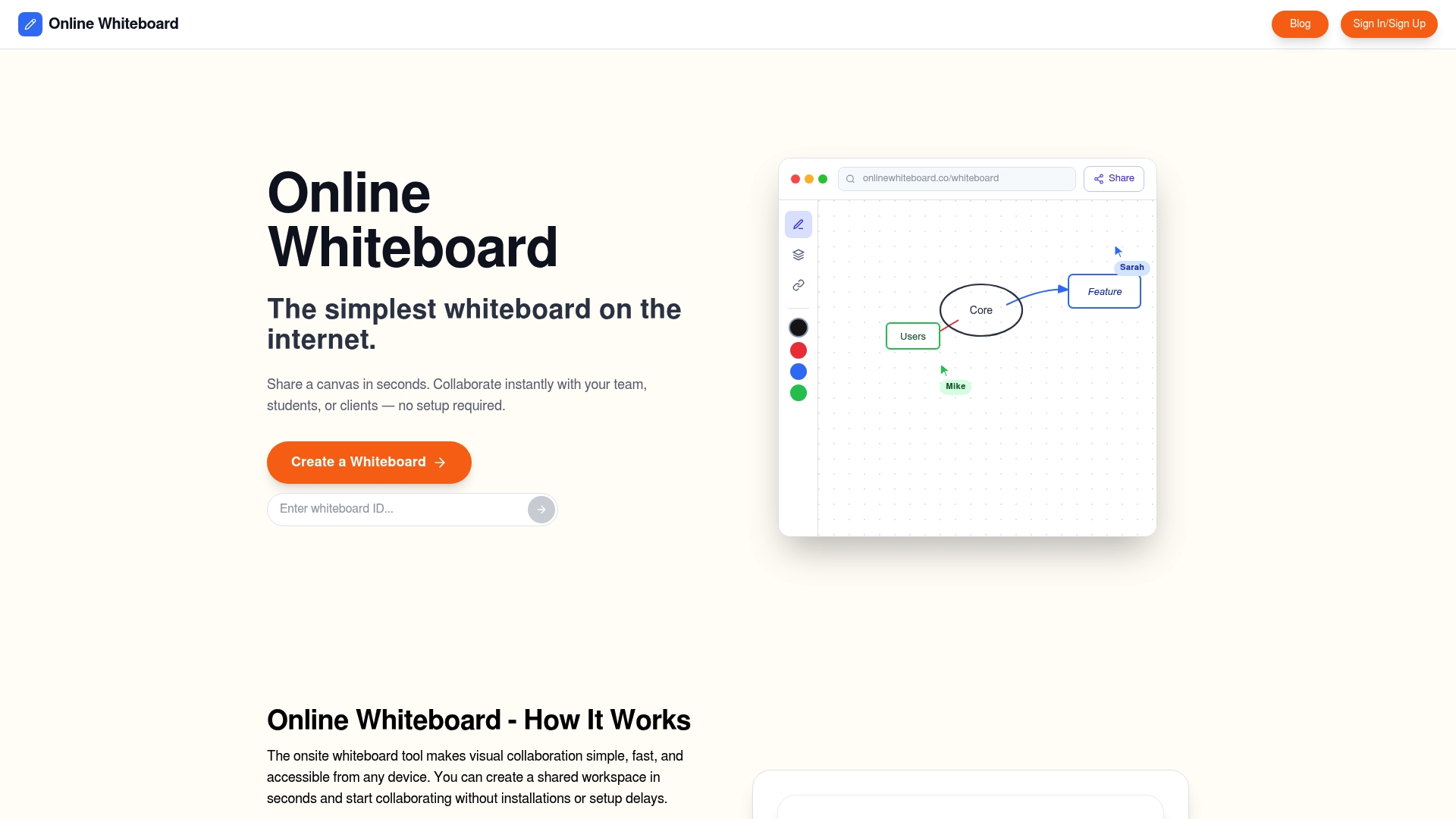
Experience the freedom of a clean digital canvas that works across devices and keeps your sessions focused on real-time creativity. Visit Onlinewhiteboard.co to try a simple yet powerful tool built for rapid collaboration. Start your next project by opening a whiteboard, sharing a link, and turning ideas into visual plans without wasting time on complicated setup.
Frequently Asked Questions
How does Onlinewhiteboard support quick collaboration for brainstorming sessions?
Onlinewhiteboard allows users to create a whiteboard instantly with a single click and share a private link for immediate access without any accounts. This quick setup significantly enhances the ability to brainstorm and sketch ideas in real-time, removing barriers typically associated with collaborative tools. Consider using Onlinewhiteboard for spontaneous meetings and short ideation sessions to keep your team productive.
What is the difference between Onlinewhiteboard and Excalidraw in terms of user-friendliness?
Excalidraw boasts a highly intuitive interface that allows users to start drawing in under a minute with minimal onboarding. In contrast, while Onlinewhiteboard also provides a rapid setup with immediate access, it offers a more basic toolset suited for quick sketches rather than stylized hand-drawn visuals. If you prioritize pen-and-paper aesthetics for sketches, Excalidraw may serve you better, while Onlinewhiteboard is ideal for straightforward collaborative sessions.
Which platform is better for embedding media and materials during collaboration?
Miro excels in media embedding, allowing users to keep notes, screenshots, and documents directly on the board for immediate reference during collaborative work. Onlinewhiteboard, on the other hand, is designed for fast, low-friction sketching and does not support advanced multimedia features. For sessions requiring extensive media integration, Miro would be the preferable choice.
Can I use Onlinewhiteboard for structured workshop sessions?
Onlinewhiteboard is primarily designed for quick, ad-hoc brainstorming and lacks the extensive template catalog found in Miro, which is tailored for structured workshops and meetings. If your focus is on dynamic sketching rather than organized planning, Onlinewhiteboard would be a fitting choice for immediate collaboration, while Miro is better equipped for meeting facilitation.
How does the real-time collaboration feature work on Onlinewhiteboard?
Onlinewhiteboard enables real-time collaborative drawing and writing, allowing multiple users to make changes to a board simultaneously. This feature fosters active participation and ensures that all contributors’ ideas are captured instantly, making it ideal for remote team meetings or class discussions. Utilize this functionality for effective, engaging sessions where immediate input is critical.