A chalkboard digital is an interactive platform that replicates natural writing on a board while adding real-time collaboration, multimedia embedding, and permanent digital storage. The standard industry term is interactive whiteboard, though “digital chalkboard” describes tools specifically designed to mimic the look, feel, and flow of traditional chalk-on-slate writing. Modern platforms like Onlinewhiteboard, along with self-hosted options like the Chalkboard Raspberry Pi project, give educators and remote teams a flexible canvas that physical boards simply cannot match. The core advantage is clear: everything written on a blackboard digital surface can be saved, shared, and revisited instantly.
What makes a chalkboard digital different from a traditional board?
A digital chalkboard separates itself from a physical board through four core capabilities: low-latency writing, multimedia support, real-time collaboration, and permanent storage. Each one solves a real problem that chalk and markers cannot.
Low-latency writing is the foundation of any credible digital board experience. Modern interactive whiteboards achieve writing latency under 10 milliseconds. That speed means your stylus or finger input registers on screen before your brain notices any delay, making the experience feel as natural as writing on the board with chalk.

Multimedia embedding is where digital boards leave physical ones behind entirely. Digital chalkboards support images, video, and PDFs directly on the canvas. A chemistry teacher can embed a reaction video next to a hand-drawn molecular diagram. A product manager can drop a competitor screenshot beside a brainstormed feature list.
Here is a quick breakdown of the key differentiating features:
- Real-time multiuser collaboration: Multiple participants write, draw, and annotate simultaneously, whether they are in the same room or across time zones.
- Digital saving and sharing: Notes export as PDFs or images and share via email or QR codes, turning a session’s thinking into a permanent record.
- Dark mode and customizable interfaces: High-contrast color schemes reduce eye strain during long sessions and improve accessibility for students with visual sensitivities.
- Undo and edit: Unlike chalk, every mark on a blackboard virtual surface is reversible. That freedom encourages experimentation.
Pro Tip: Set your digital board background to dark gray or deep green before a session. It mimics the visual comfort of a physical chalkboard and reduces screen glare for participants joining from bright environments.
How do digital chalkboards improve teaching and remote collaboration?
The biggest shift a digital chalkboard creates is moving students and participants from passive observers to active contributors. On a physical board, one person writes while everyone else watches. On a digital board, the dynamic changes completely.
Assigning specific roles such as writer, reviewer, or presenter on digital boards maintains organization and boosts engagement in hybrid classes. This is not a minor tweak. When a student knows they are the designated “writer” for the next five minutes, their attention sharpens immediately.
Here is a practical framework for running a more interactive session using a blackboard screen:
- Divide the canvas into sections. Assign one zone per topic, group, or phase of the lesson. Clear sectioning prevents the board from becoming a cluttered mess and mirrors the layout discipline of effective physical blackboards.
- Assign rotating board roles. Rotate the writer role every 10–15 minutes. This keeps every participant engaged and gives quieter students a structured reason to contribute.
- Use the board for formative assessment. Ask students to post their answers in a designated zone. You can see every response at once, identify misconceptions, and address them in real time.
- Lock completed sections. Once a concept is explained and noted, lock that section of the board. This prevents accidental edits and signals to participants that the thinking in that zone is settled.
- Save and distribute at the end. Export the full board as a PDF and share it with participants before the session ends. This replaces the frantic photo-taking that happens at the end of physical board sessions.
“Whiteboards are thinking boards, not just show-me boards. The act of externalizing thought onto a surface reduces cognitive load and creates space for refinement.” — Ben Cooper, educator and writer at Wagoll Teaching
Digital boards reduce cognitive load by externalizing thoughts, allowing experimentation and idea editing before committing concepts permanently. This matters most in brainstorming sessions and early-stage problem solving, where the pressure to “get it right” can stifle creative thinking. A digital canvas removes that pressure entirely.
For remote teams, the same principles apply. A virtual chalkboard app used during a sprint planning session gives every team member a visible, shared surface for ideas. That visibility alone reduces the “I didn’t know we decided that” problem that plagues text-only meetings.
What are the most popular digital chalkboard tools in 2026?
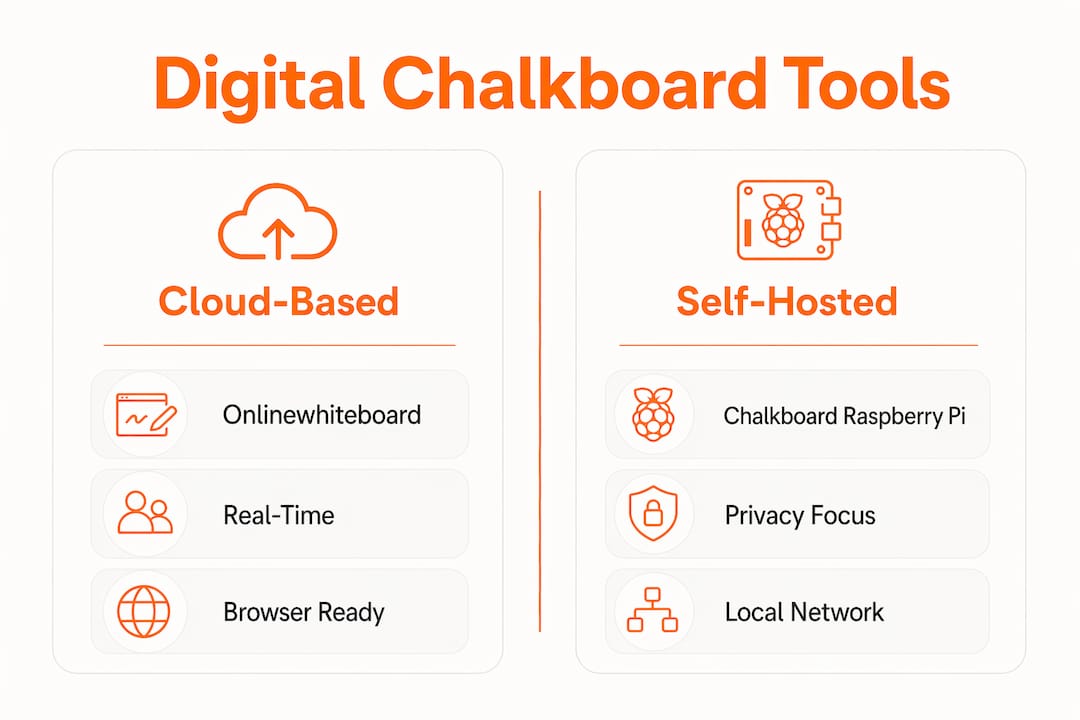
The market for digital chalkboard software divides into three categories: cloud-based platforms, self-hosted solutions, and hardware-integrated systems. Each serves a different need.
| Tool | Latency | Collaboration | Cost | Installation |
|---|---|---|---|---|
| Onlinewhiteboard | Under 10ms | Real-time multiuser | Free tier available | None, browser-based |
| Chalkboard (Raspberry Pi) | Local network speed | Local network only | Free, open source | ~8 minutes on Raspberry Pi |
| Promethean ActivPanel | Under 10ms | In-room and remote | Hardware purchase required | Hardware setup |
Onlinewhiteboard is the most accessible starting point for most educators and remote teams. It runs entirely in a browser, requires no download, and supports real-time collaboration with drawing, writing, and diagramming tools. It fits naturally into virtual classes, team meetings, and workshop facilitation.
The Chalkboard Raspberry Pi project is the right choice for schools or organizations that prioritize privacy and control. It runs entirely locally without vendor lock-in, with no cloud services or subscriptions required. For a school district with strict data governance policies, this is a meaningful advantage. The tradeoff is that collaboration is limited to the local network.
Promethean ActivPanel and similar hardware-based interactive whiteboards suit classrooms where a large shared display is the centerpiece of instruction. The writing latency under 10 milliseconds on these devices makes them feel nearly identical to physical boards. The cost is the barrier: hardware setups require significant upfront investment.
For teams evaluating online chalkboard tools beyond the most well-known names, the comparison above provides a clear starting framework. The right choice depends on three factors: whether you need cloud access or local control, your budget, and the size of your typical session.
How to set up and use a digital chalkboard effectively
Getting a digital chalkboard running is straightforward. Using it well takes a bit more thought.
For cloud-based platforms like Onlinewhiteboard, setup takes under two minutes. Open a browser, create a board, and share the link with participants. No accounts are required for basic use. The key setup decisions are canvas size, background color, and whether to enable multiuser editing from the start.
For the Chalkboard Raspberry Pi project, the process is slightly more involved but still accessible. The installer completes in approximately eight minutes and configures the board to run on your local network. Once running, any device on the same network can access the board through a browser. There are no ongoing subscription costs and no data leaving your network.
Here are the best practices that apply across all digital chalkboard platforms:
- Use high-contrast colors. Legible layout principles from physical blackboards carry directly into digital use. White or yellow text on a dark background is easier to read than black text on white, especially on projected displays.
- Section the board before the session starts. Label zones in advance so participants know where to contribute. This prevents the “pile everything in the center” problem.
- Manage user permissions actively. Give presenter-only access to participants who are observing, and full edit access only to those with an active role. This keeps the board organized during live sessions.
- Integrate with your video conferencing tool. Share your board screen in Zoom, Google Meet, or Microsoft Teams so remote participants see every change in real time. Most cloud-based platforms also offer direct share links that work alongside video calls.
- Update and maintain your platform regularly. For cloud tools, updates are automatic. For self-hosted options like the Raspberry Pi project, check the GitHub repository for updates every few months.
Pro Tip: Before a large session, create a “parking lot” zone on the board for off-topic ideas. This keeps the main canvas focused while giving participants a place to capture thoughts that matter but do not belong in the current discussion.
Key takeaways
A digital chalkboard combines the natural feel of writing on the board with the permanence, collaboration, and multimedia capabilities that physical boards cannot provide.
| Point | Details |
|---|---|
| Low latency is non-negotiable | Writing latency under 10ms makes digital boards feel as natural as chalk on slate. |
| Roles drive engagement | Assigning writer, reviewer, and presenter roles increases participation in hybrid and remote sessions. |
| Cloud vs. self-hosted | Cloud platforms like Onlinewhiteboard offer instant access; Raspberry Pi setups offer privacy and local control. |
| Layout discipline matters | Sectioning the board and using high-contrast colors directly improves comprehension and reduces clutter. |
| Boards externalize thinking | Using the canvas as a thinking surface reduces cognitive load and encourages experimentation before committing ideas. |
Why I think most people underuse their digital boards
Most educators and team leaders treat their digital chalkboard the same way they treated their physical one: one person writes, everyone else watches. That approach wastes the most powerful thing a digital board offers, which is the ability to make thinking visible for everyone at once.
Educator Ben Cooper frames this well. Viewing whiteboards as thinking boards rather than presentation surfaces changes how you design a session entirely. The board becomes a place where ideas are built in public, not announced after the fact.
The layout lessons from physical blackboards also get ignored too often in digital contexts. Block letters, clear sectioning, and high-contrast color coding are not aesthetic choices. They are comprehension tools. A cluttered digital canvas is harder to process than a cluttered physical board because the screen adds visual noise that chalk never did.
The most effective digital board sessions I have seen share one trait: the facilitator treats the canvas as a shared cognitive workspace, not a personal notepad. They invite others to write, they leave space for revision, and they resist the urge to fill every pixel. That restraint is harder than it sounds, but it is what separates a board session that people remember from one they forget before the meeting ends.
— A
Try Onlinewhiteboard for your next session
Onlinewhiteboard gives educators, students, and remote teams a free, browser-based digital canvas built for real collaboration. No downloads, no complicated setup, and no subscription required to get started.
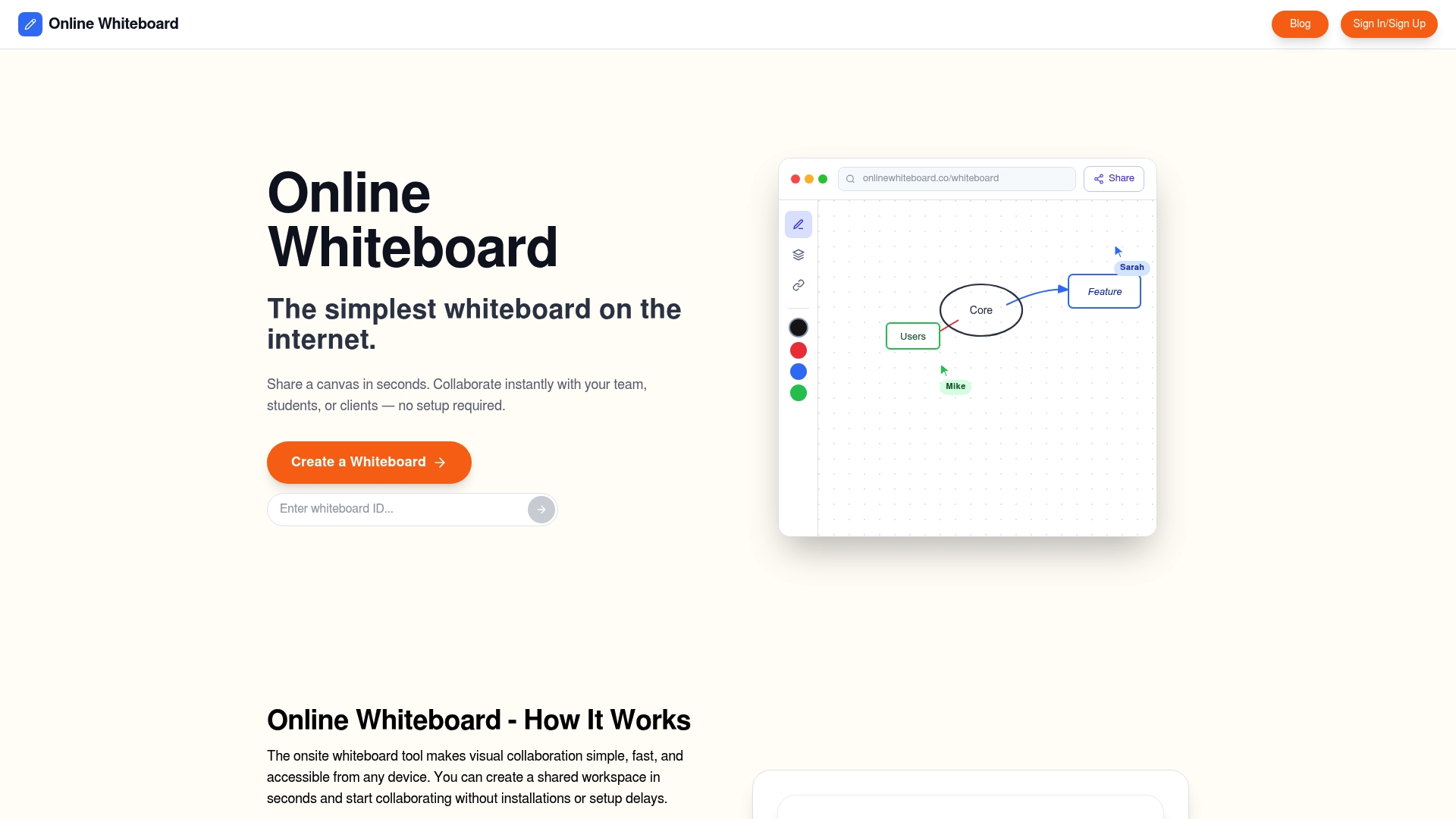
Whether you are running a virtual class, leading a remote brainstorm, or mapping out a project with your team, Onlinewhiteboard supports real-time multiuser writing, drawing, and multimedia embedding on a single shared canvas. It is the fastest way to bring the energy of writing on the board into any remote or hybrid session. Start a free board today and see how much more your team can accomplish when everyone has a pen.
FAQ
What is a chalkboard digital tool?
A chalkboard digital tool is an interactive platform that replicates the experience of writing on a physical board while adding digital features like real-time collaboration, multimedia embedding, and note saving. The standard industry term is interactive whiteboard.
How fast is writing on a digital chalkboard?
Modern interactive whiteboards achieve writing latency under 10 milliseconds, making stylus and finger input feel nearly identical to writing with chalk or a marker.
Can I use a digital chalkboard without an internet connection?
Yes. The Chalkboard Raspberry Pi project runs entirely on a local network with no cloud services or subscriptions, making it a strong option for environments with limited or restricted internet access.
What is the best free digital chalkboard for teachers?
Onlinewhiteboard is a free, browser-based platform that supports real-time multiuser collaboration, drawing, and multimedia embedding with no download or account required. It is well suited for both classroom teaching and remote team sessions.
How do digital boards improve student participation?
Assigning board roles such as writer, reviewer, and presenter gives every student a structured reason to engage, which increases participation particularly in hybrid and remote learning environments.