
For teams that need fast, shared sensemaking and interactive workshops, a shared digital canvas with lightweight templates and real-time co-editing is the best first step. This class of tool speeds up ideation and produces clearer decisions because everyone sees the same visual artifact at the same time. The practical next move is simple: run a 30 to 60 minute pilot workshop on a single board before committing to a wider rollout.
TL;DR:
- Use canvases for brainstorming, workshops, process mapping, onboarding, and asynchronous handoffs; use project management tools for routine status tracking and approvals.
- During a one week trial, test guest access, exports, a real workshop, and later board reuse; test another tool if two red flags appear.
- Check simultaneous editing, facilitation controls, PDF, PNG, and CSV exports, integrations, security controls, and guest access before choosing a tool with external participants.
- Treat AI summaries and grouping suggestions as drafts for human review; whole image regeneration can narrow ideas too early and reduce iteration.
- Track how many workshop ideas become tasks, then revisit the board days later; reuse reveals adoption more clearly than attendance alone.
Table of Contents
- What visual collaboration tools actually are
- Where these tools deliver the most value
- Features that actually matter when evaluating a tool
- How to choose: a trial checklist and the red flags to watch
- AI and LLM features: what research shows they can and can’t do
- Integrations and workflows that make a canvas stick
- Pricing and deployment: what a pilot should cost
- Lessons from running these pilots
- How Onlinewhiteboard.co fits that checklist
- FAQ
- Sources
What visual collaboration tools actually are
A shared digital canvas is an open, zoomable workspace where a group can add sticky notes, freehand drawings, shapes, images, and connecting lines in real time. Unlike a document, which organizes information in a linear sequence, or a task board, which sorts work into fixed columns, a canvas has no inherent structure. Teams build the structure themselves, which is exactly what makes it useful for early-stage thinking, when the shape of a problem is not yet clear.
The typical interface includes a handful of recurring elements: a sticky-note tool for quick-fire ideas, freehand drawing for sketching rough concepts, connector lines for showing relationships, and frames or sections for grouping related content. Most canvases also support image uploads, text boxes, and some form of voting or reaction tool for group prioritization.
Common artifact types that emerge from a working canvas include:
- Affinity maps, where scattered sticky notes get clustered into themes after a brainstorm.
- Journey maps, which lay out a customer or user experience step by step.
- Process diagrams, built from connected shapes that show how work flows between people or systems.
- Mind maps, radiating from a central idea to capture related thoughts and dependencies.
- Retrospective boards, often organized into columns like “what worked” and “what didn’t.”
The defining trait across all of these is persistence combined with flexibility. A canvas holds the visual trail of a conversation long after the meeting ends, and anyone can return to reorganize it without starting over. That combination, shared vocabulary plus durable structure, is what separates a visual collaboration tool from a simple chat thread or a static slide deck.
Where these tools deliver the most value
Not every team task benefits equally from a visual canvas. The format earns its place when a group needs to think together, not just report status to each other. Here are the situations where that advantage shows up most clearly.
- Remote and hybrid brainstorming. A shared canvas lets distributed participants contribute ideas simultaneously instead of waiting for a turn to speak, which tends to surface a wider range of initial concepts.
- Facilitated workshops. Customer journey mapping, impact and effort prioritization, and sprint retrospectives all rely on participants seeing the same evolving picture, something a canvas handles better than a slide-by-slide presentation.
- Process and systems mapping. Teams documenting how a workflow actually operates, rather than how it’s supposed to operate on paper, use connectors and diagrams to expose bottlenecks that a written description would hide.
- Onboarding and training. New hires often absorb a system or workflow faster from a single annotated diagram than from a multi-page document, especially when they can ask questions directly on the board.
- Async handoffs. When contributors are in different time zones, a canvas allows one person to leave annotated context for another to pick up without a live meeting.
The common thread is visual thinking under time pressure or across distance. Tasks that are mostly administrative, like tracking ticket status or approving a budget, usually fit better in a dedicated project management tool. Visual canvases earn their keep when the group needs to build shared understanding from scratch, not just confirm what’s already agreed.
Features that actually matter when evaluating a tool
Feature lists for these products can run long, but most of what matters sorts into five practical categories. Treat each one as a pass or fail test during a trial rather than a marketing checkbox.
- Real-time collaboration fidelity. Simultaneous cursors should move without noticeable lag, and the tool should handle several people editing the same area without overwriting each other’s work. Session playback, where available, helps a facilitator review how a workshop unfolded.
- Facilitation controls. Built-in timers, voting mechanisms, and the ability for a facilitator to lock sections or spotlight a participant’s cursor all reduce the chaos of a live session with more than a handful of people.
- Export and interoperability. A board’s value drops sharply if its content can’t leave the platform. Look for clean PDF and PNG export, CSV export for sticky-note data, and direct integrations with the project management and communication tools your team already uses.
- Security and admin controls. Single sign-on, provisioning through SCIM, data export on request, and clear retention policies matter more as soon as a pilot moves toward a company-wide rollout.
- Template depth and access flow. A workable template library saves facilitators from rebuilding the same retrospective or journey map every time, and a frictionless guest or anonymous access flow determines whether external stakeholders can actually join a session without a support ticket.
Pro Tip: Test the guest invite flow from a personal, non-corporate email account before a trial ends. That single test reveals more about real-world friction than any feature list.
None of these categories require taking a vendor’s word for it. Every one of them can be verified directly during a short trial, which is the subject of the next section.
How to choose: a trial checklist and the red flags to watch
Choosing a visual collaboration tool doesn’t require a long procurement cycle. A one-week trial, run deliberately, answers most of the questions that matter.
- Day 1 to 2: Create a board using a built-in template and invite two or three colleagues as guests to confirm the sign-up friction is low.
- Day 2 to 3: Test export in every format you’ll actually need, PDF for sharing, CSV for data, PNG for quick screenshots.
- Day 3 to 5: Run one real workshop on the board, not a demo, with an actual decision or deliverable at stake.
- Day 5 to 7: Revisit the board a few days later and measure whether anyone reused it, referenced it, or turned a sticky note into an actual task.
Alongside that trial, a short list of questions to ask a vendor or an internal trial owner keeps the evaluation grounded:
- Where is data stored, and does that location matter for your compliance requirements?
- What onboarding support exists beyond a help center article?
- Which features are gated behind enterprise plans, and does your team actually need them yet?
A few red flags are worth pausing on immediately rather than working around:
- No straightforward way to export a board’s content.
- A guest access flow that requires account creation before viewing anything.
- Pricing pages that obscure per-editor versus per-viewer costs.
- Admin controls that can’t answer a basic question like who has access to a given board.
If a trial surfaces two or more of these, it’s usually faster to test an alternative than to negotiate around the gap.
AI and LLM features: what research shows they can and can’t do
AI features have become a standard pitch in this category, but the research on what they actually improve is more specific than the marketing suggests. A large body of work on shared visual workspaces points to offloading working memory onto visual artifacts as the core cognitive benefit, letting a group compare and evaluate ideas without holding everything in their heads at once, a benefit that predates any AI layer entirely.
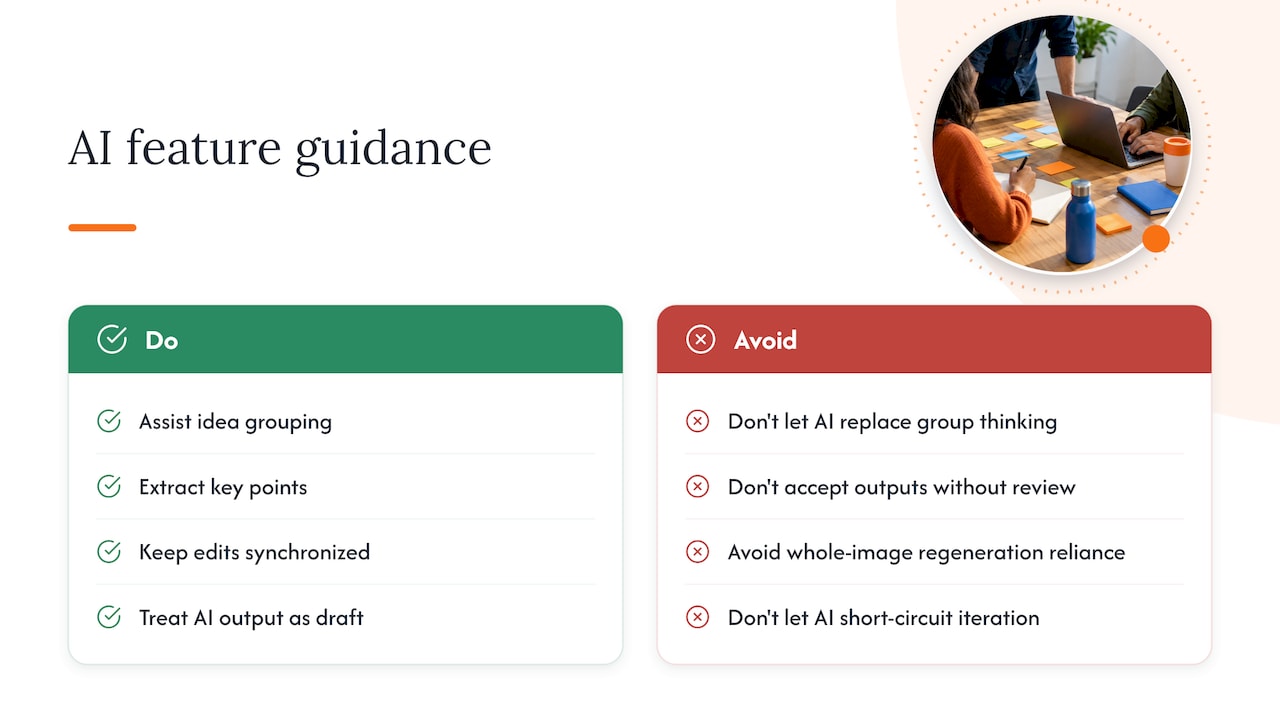
Where AI adds something new, the research is narrower than “AI makes collaboration smarter.” The LADICA research on large shared displays proposes that generative AI assistance should target meta- and macro-cognitive tasks, like grouping related ideas, extracting key points from a discussion, and keeping synchronized edits consistent across personal devices, rather than generating the group’s thinking for it.
AI features should assist meta- and macro-cognitive processes such as idea grouping and key-point extraction, not replace group-led collaboration.
One study found that fragment-level, GenAI-augmented visual brainwriting produced richer, more iterative outputs compared to whole-image regeneration approaches, according to research on structured visual ideation. The same study observed that teams relying on whole-image regeneration tended to converge too early on a single concept, losing the iterative advantage that makes visual brainwriting useful in the first place.
The practical guardrail that follows from both studies is consistent: treat AI output as a draft that a human reviews and reshapes, never as a finished artifact. A grouping suggestion or a summary paragraph is useful raw material. A generated image or a generated action plan accepted without scrutiny tends to short-circuit the group thinking the tool was supposed to support.
Integrations and workflows that make a canvas stick
A canvas rarely lives in isolation. The tools that get used past the first month are the ones embedded into a team’s existing rhythm rather than treated as a separate destination.
- Launch from meetings. Embedding or linking a board directly inside a video call reduces the chance that a workshop output gets abandoned the moment the call ends.
- Link cards to tickets. Connecting a sticky note or shape to a ticket in a project management tool turns a workshop idea into tracked work without manual re-entry, a pattern common in vendor integrations with Microsoft Teams and similar platforms.
- SSO and provisioning. For any team past a handful of users, single sign-on avoids the slow creep of forgotten passwords and orphaned accounts.
A workflow recipe worth adopting: run the synchronous workshop, take a snapshot of the finished board, then convert the decisions into async action items inside whatever project tool the team already trusts. That handoff step is where most of the value of a workshop either gets captured or quietly evaporates.
Board hygiene matters more than it sounds. A consistent naming convention, a small library of reusable templates, and a habit of archiving boards older than a set number of months keep a growing workspace from turning into a graveyard of abandoned canvases nobody can find again.
Pricing and deployment: what a pilot should cost
Pricing in this category generally follows one of a few shapes: a free tier with limited boards or collaborators, a per-editor monthly fee, a per-active-user model that scales with actual usage rather than seat count, or an enterprise bundle that adds admin and security features on top. Published market reviews of visual collaboration applications describe this range of deployment shapes as standard across the category.
The sticker price rarely reflects the full cost of adoption. A few line items tend to get missed in a budget conversation:
- Training time, since a facilitator unfamiliar with the tool will run a noticeably slower first workshop.
- Admin overhead, from managing permissions to answering access questions as the team grows.
- External templates or consultancy, which some teams purchase to shortcut the learning curve on complex frameworks.
A small pilot should be budgeted in hours, not dollars, for the first week: the time for one facilitator to build a template and run one workshop. An enterprise purchase is a different conversation entirely, one that should wait until a pilot has already produced evidence of reuse.
Lessons from running these pilots
The tactical pattern that separates a useful pilot from a forgotten one is small and repeatable: start with a single board, reuse a template rather than building from scratch each time, and track a simple number, how many sticky notes or ideas from a workshop actually turned into a task somewhere else. That reuse rate is a better signal of real adoption than attendance at the workshop itself.
Teams that skip measurement tend to run one good workshop, feel momentarily impressed, and never return to the tool.
— A
How Onlinewhiteboard.co fits that checklist
Everything in the checklist above points toward one practical requirement: a tool that a team can start using in minutes, not after a procurement cycle. That’s the specific gap Onlinewhiteboard is built to close, with instant access, no downloads, and a canvas that opens directly in a browser on any device.
A reasonable pilot plan looks like this: build one simple template for a workshop you already have scheduled, run a session with your team, and export the outcomes directly into whatever project management tool tracks your work. The board stays available afterward for anyone who wants to revisit a decision or pull a sticky note into a new task.
If the trial checklist from earlier in this guide matters to your team, the fastest way to test it against a real tool is to open a board and try it with your next scheduled meeting.
FAQ
What are visual collaboration tools?
Visual collaboration tools are shared digital canvases that let a team draw, write, and organize ideas together in real time, usually through sticky notes, freehand drawing, and connecting shapes. They differ from documents and task boards because they have no fixed structure, letting a group build their own visual organization as a conversation unfolds.
What are some virtual collaboration tools?
The category includes shared whiteboard canvases, video conferencing platforms, project management boards, and async messaging tools, each suited to a different kind of teamwork. Shared canvases specifically support visual thinking tasks like brainstorming and journey mapping, while project tools handle tracked, sequential work.
What are the four types of collaboration tools?
Collaboration tools are commonly grouped into communication tools (chat, video), project and task management tools, document and file-sharing tools, and visual or whiteboard-style canvases. Each category serves a different stage of teamwork, from real-time discussion to long-term documentation.
What are the two different categories of visual collaboration tools?
Visual collaboration tools generally split into structured canvases, which emphasize templates, diagrams, and process mapping, and freeform canvases, which prioritize open sketching and flexible brainstorming. Many modern tools, including simple browser-based whiteboards, blend both approaches so a team can start freeform and add structure as ideas take shape.
How do I start using a visual collaboration tool with my team?
Start with a single pilot workshop on one board, using a basic template rather than a blank canvas, and invite only the people directly involved in that session. Measure whether anyone revisits the board or turns an idea into actual work afterward, since that reuse is the clearest sign the tool is worth adopting more broadly.
Sources
- LADICA: A Large Shared Display Interface for Generative AI Cognitive Assistance in Co-located Team Collaboration
- AtoMix: Fostering Structured Visual Ideation for Remote Groups through Atomic Composition and Cross-Pollination