
A digital classroom brainstorm activity is a structured, technology-supported exercise where students generate, share, and build on ideas through interactive online tools. Unlike a traditional whiteboard session, the digital version runs on platforms like Onlinewhiteboard, Slido Ideas, and Flat.social, giving every student a visible voice regardless of location. The core practice is known in educational technology circles as collaborative ideation, and it is one of the highest-impact online classroom activities available to educators today. When structured correctly, these sessions produce more ideas, more participation, and more memorable learning than passive lecture formats.
What tools best support a digital classroom brainstorm activity?
The right tool determines whether a virtual brainstorming session runs smoothly or collapses under technical friction. Educators have four strong options in 2026, each with distinct trade-offs.
Onlinewhiteboard is a browser-based canvas that requires no account or software download. It supports real-time drawing, sticky notes, and shared diagrams, making it ideal for spontaneous sessions. Its no-login model also means students can join instantly without privacy barriers. For educators who want client-side data processing, Onlinewhiteboard keeps information on user devices rather than remote servers, which is the gold standard for classroom privacy compliance.

Flat.social specializes in spatial brainstorming, where the digital canvas is divided into distinct zones for parallel group work. Spatial sessions achieve 3x idea output in one-third the time of standard video calls. That efficiency gain is significant for educators working within 50-minute class periods.
Slido Ideas focuses on structured input and AI-powered organization. It collects text responses from students and automatically groups similar ideas into categories, which speeds up the synthesis phase after a session ends.
Web Whiteboard offers a lightweight, no-frills canvas suited to quick sketching exercises and small groups. It lacks advanced spatial features but loads fast on low-bandwidth connections.
One critical limitation applies to several free tools: user data expires after 21 days on no-login free boards. Educators who plan to revisit student work across multiple sessions should either export outputs immediately or upgrade to a paid tier.
| Tool | Real-Time Collaboration | Spatial Zones | No Login Required | AI Organization |
|---|---|---|---|---|
| Onlinewhiteboard | Yes | No | Yes | No |
| Flat.social | Yes | Yes | No | No |
| Slido Ideas | Yes | No | No | Yes |
| Web Whiteboard | Yes | No | Yes | No |
How to prepare a digital brainstorming session that actually works
Preparation is where most educators underinvest. Spending 10 minutes pre-building virtual rooms with zones and prompts creates measurably more purposeful and efficient sessions. Think of the digital canvas as classroom architecture. The way you arrange it shapes how students move through ideas.
Follow these steps before every session:
- Choose your tool and test it. Open the platform on the device your students will use. Confirm that sharing links work and that the canvas loads without an account if you are using a no-login tool.
- Build your virtual zones. Divide the canvas into labeled sections: one per group or one per question. This prevents the chaos of everyone writing in the same space.
- Write your prompts in advance. Place each prompt directly on the canvas so students see it the moment they join. Vague prompts produce vague ideas.
- Set the rules visibly. Add a short instruction panel to the canvas. Include the session goal, time limits, and one cultural norm such as “build on ideas, do not critique them.”
- Demonstrate Undo and Redo. Undo/Redo familiarity boosts confidence on shared boards. Show students these functions before the session starts so they are not afraid to experiment.
- Assign roles if needed. For larger classes, designate one student per group as a zone facilitator to keep contributions organized.
Pro Tip: Run a 5-minute practice round on a throwaway canvas the class before your first real session. Students who have touched the tool once arrive at the real session with zero hesitation.
Step-by-step execution of a brainstorming session
The execution phase is where preparation pays off. A well-run session moves through four distinct stages.
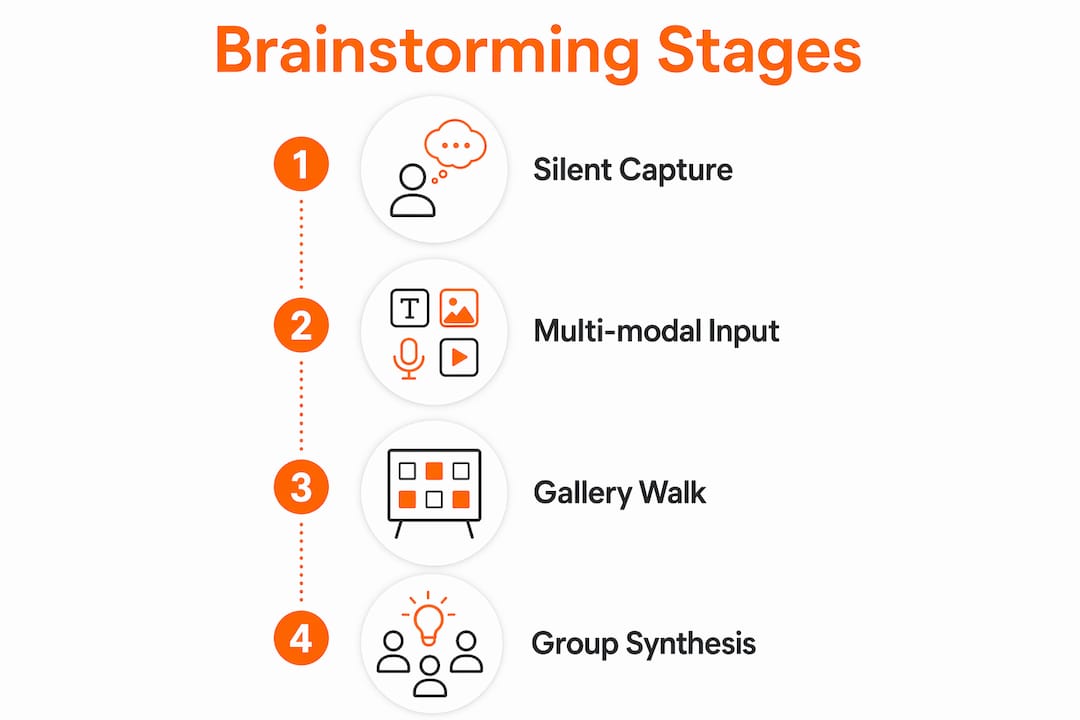
Stage 1: silent idea capture
Open the session with individual input. Ask every student to add at least three sticky notes to their zone before any discussion begins. The 30-Second Rule applies here: allow 30 seconds of silent reflection after each prompt before students start typing. That brief pause improves cognitive processing and produces more considered ideas than immediate open discussion.
Stage 2: multi-modal input
Encourage students to contribute in more than one format. Text notes work for most ideas, but drawing tools capture spatial or visual concepts that words cannot. Voice annotations, where supported, give quieter students a lower-stakes entry point than typing in a shared visible space.
Stage 3: gallery walk and voting
After the initial capture phase, open the canvas for a gallery walk. Students scroll through all zones and leave reactions. Visual voting with hearts or fireworks ensures that contributions from quieter students receive the same visibility as those from dominant voices. This step is the most underused technique in digital ideation, and it consistently surfaces the best ideas.
Stage 4: group synthesis
Bring the class back together to discuss the top-voted ideas. Use this time to cluster related concepts and identify two or three themes worth developing further.
Pro Tip: Build a 3-minute silent reflection period into the middle of your session, not just the start. Students who feel overwhelmed by a fast-moving canvas often produce their strongest ideas during a structured pause.
| Approach | Best For | Idea Volume | Inclusion Level |
|---|---|---|---|
| Single shared canvas | Small groups (under 10) | Moderate | Moderate |
| Spatial zones | Large classes (20 or more) | High | High |
| Asynchronous input | Introverted or remote students | Moderate | Very High |
| Voting-only round | Prioritization after capture | Low | High |
Common challenges in digital brainstorming and how to overcome them
Even well-prepared sessions hit friction. Knowing the most common failure points lets you address them before they derail participation.
- Premature critique. Students instinctively evaluate ideas as they appear. A “Yes, And…” culture borrowed from improv theater counters this directly. Train students to respond to any idea by building on it rather than questioning it. This single shift produces more creative output than any tool feature.
- Tool anxiety. Students who have never used a shared canvas hesitate to contribute for fear of making a visible mistake. Demonstrating Undo and Redo at the start of every session removes this barrier. Pair this with a low-stakes warm-up exercise.
- Participation imbalance. Extroverted students dominate text-based canvases just as they dominate verbal discussions. Spatial zones with individual areas fix this by giving every student a dedicated space. Asynchronous input windows, where students contribute before the live session, also level the field.
- Data loss. Free tools that delete data after 21 days create real problems for multi-week projects. Export your canvas as an image or PDF at the end of every session. Make this a non-negotiable habit.
- Connectivity gaps. Not every student has reliable internet. Lightweight tools like Onlinewhiteboard load faster than feature-heavy platforms and work better on mobile devices. Always have an asynchronous fallback option ready.
- Unclear prompts. Vague questions produce vague answers. Rewrite every prompt as a specific, answerable question before the session begins.
For educators working with real-time collaboration tools, structured digital environments consistently outperform unstructured ones in both idea quantity and student satisfaction.
How to evaluate and follow up after a brainstorming session
The session itself is only half the work. What happens after determines whether ideas become learning outcomes or get forgotten.
- Categorize immediately. Use Slido Ideas’ AI grouping feature to cluster student inputs into themes right after the session ends. This turns a wall of sticky notes into a structured topic map within minutes.
- Export and share. Send students a PDF or image of the final canvas within 24 hours. Students who see their ideas preserved are more likely to engage in the next session.
- Run a priority vote. Ask students to vote asynchronously on the top three ideas they want to develop. This keeps momentum going between sessions and gives quieter students another chance to influence direction.
- Schedule a follow-up. Block time in the next class to revisit the top themes. Brainstorming without follow-through teaches students that ideas do not matter. A structured follow-up reverses that message.
- Document patterns. Keep a running log of which prompts generated the most ideas and which formats produced the most participation. This data makes every future session better.
Asynchronous collaboration tools let students continue contributing after the live session ends. This is especially useful for classes that span multiple time zones or include students with different processing speeds.
Key takeaways
The most effective digital classroom brainstorm activity combines spatial zone design, a “Yes, And…” culture, and structured follow-up to maximize both idea volume and student inclusion.
| Point | Details |
|---|---|
| Tool selection matters | Match your tool to session size: Onlinewhiteboard for small groups, Flat.social for large spatial sessions. |
| Prepare the canvas first | Pre-built zones and visible prompts reduce wasted time and increase idea output. |
| Use the 30-Second Rule | Silent reflection after each prompt improves idea quality before open discussion begins. |
| Export outputs immediately | Free tools delete data after 21 days, so save every session canvas before it expires. |
| Follow up with structure | Categorize, vote, and revisit top ideas in the next class to turn brainstorming into real learning. |
What i have learned running digital brainstorms in remote classrooms
The biggest mistake I see educators make is treating the digital canvas as a blank page and hoping students fill it. That approach produces the same three students contributing while everyone else watches. The spatial zone model changed everything for me. When every student has a named section of the canvas, the social pressure to contribute shifts from optional to expected.
The “Yes, And…” culture shift is harder to build than any technical setup, but it pays off faster. One session where you visibly celebrate a weird or unexpected idea trains the whole class to take risks. After that, the volume and originality of contributions increases noticeably.
Prep time is consistently underestimated. The 10 minutes you spend building the workspace before class saves 20 minutes of confusion during it. I have also found that showing students how to use drawing and annotation tools early in the course removes a surprising amount of hesitation. Students who know they can sketch an idea, not just type it, contribute in fundamentally different ways. Experiment with your tools, adapt to your students, and treat every session as data for the next one.
— A
Try Onlinewhiteboard for your next brainstorming session
Onlinewhiteboard gives educators a clean, fast canvas that students can access without creating an account or downloading software. That frictionless entry point matters most in the first five minutes of a session, when technical barriers kill momentum before ideas even start.
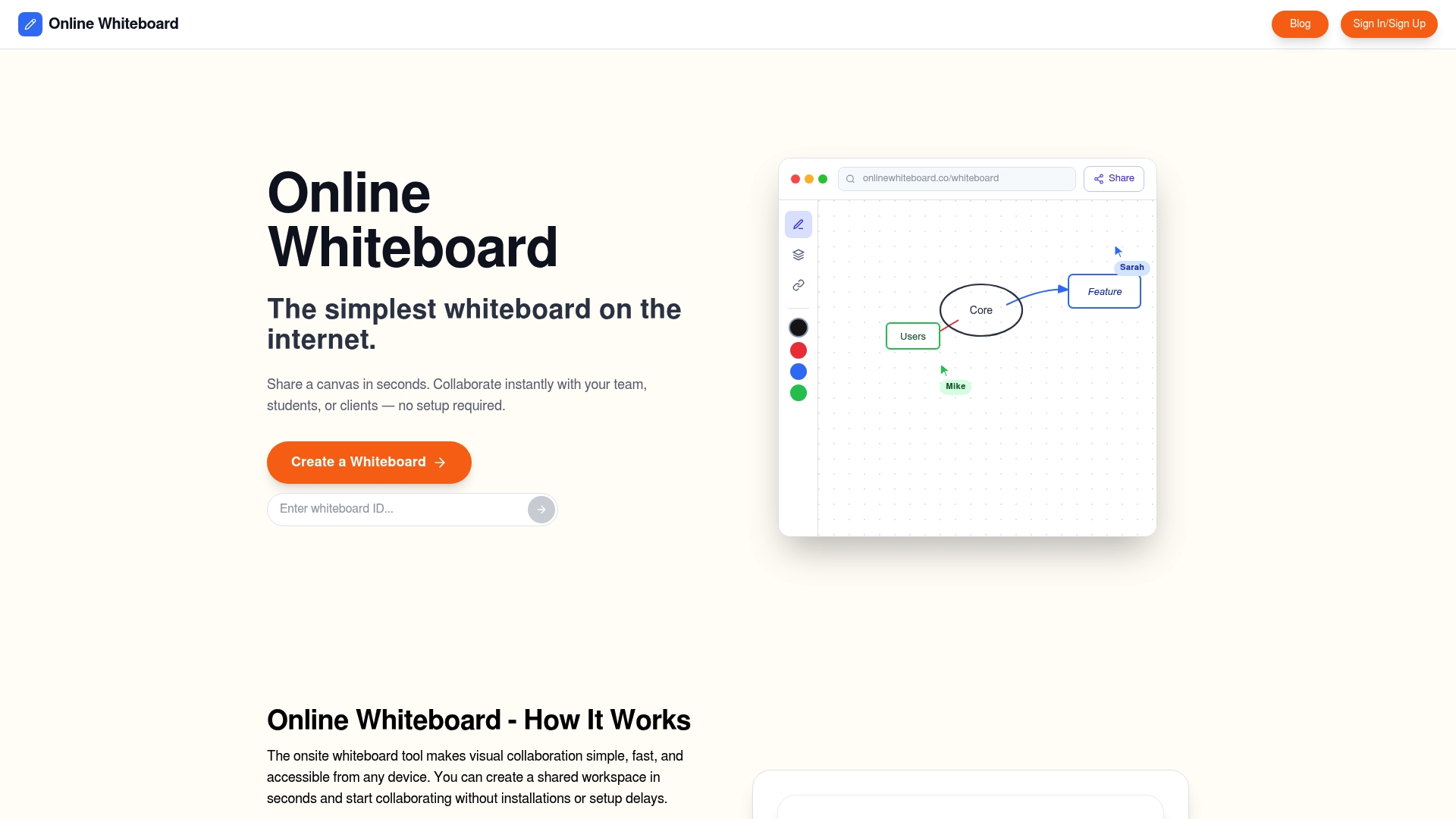
The platform supports real-time drawing, sticky notes, and shared diagrams, covering the core needs of any collaborative brainstorming session. It runs entirely in the browser and keeps data on user devices for privacy. Whether you are running a quick warm-up activity or a full-period ideation workshop, Onlinewhiteboard is ready without setup. Start your next session at onlinewhiteboard.co and see how much smoother the experience becomes when the tool gets out of the way.
FAQ
What is a digital classroom brainstorm activity?
A digital classroom brainstorm activity is a structured online exercise where students use collaborative tools like shared whiteboards or idea boards to generate and organize ideas together. It is the digital equivalent of a group whiteboard session, designed for remote or hybrid learning environments.
Which tool is best for a virtual brainstorming session?
The best tool depends on class size. Onlinewhiteboard works well for small groups needing a fast, no-login canvas, while Flat.social’s spatial zones suit larger classes that benefit from parallel group work.
How do spatial zones improve digital brainstorming?
Spatial zones divide the canvas into dedicated areas for each group or question, allowing multiple groups to work simultaneously rather than waiting for turns. This structure produces significantly more ideas in the same amount of time compared to a single shared canvas.
How do i keep students engaged during online classroom activities?
Use the 30-Second Rule to give students thinking time before contributing, assign individual zones so every student has a visible space, and run a gallery walk with voting to acknowledge all contributions, including those from quieter participants.
How should i save brainstorming outputs from free tools?
Export the canvas as a PDF or image at the end of every session. Many free collaborative boards delete user data after 21 days, so immediate export is the only reliable way to preserve student work for future reference.